
From Anime Character to Stage: Create a Virtual K-Pop Idol With AI

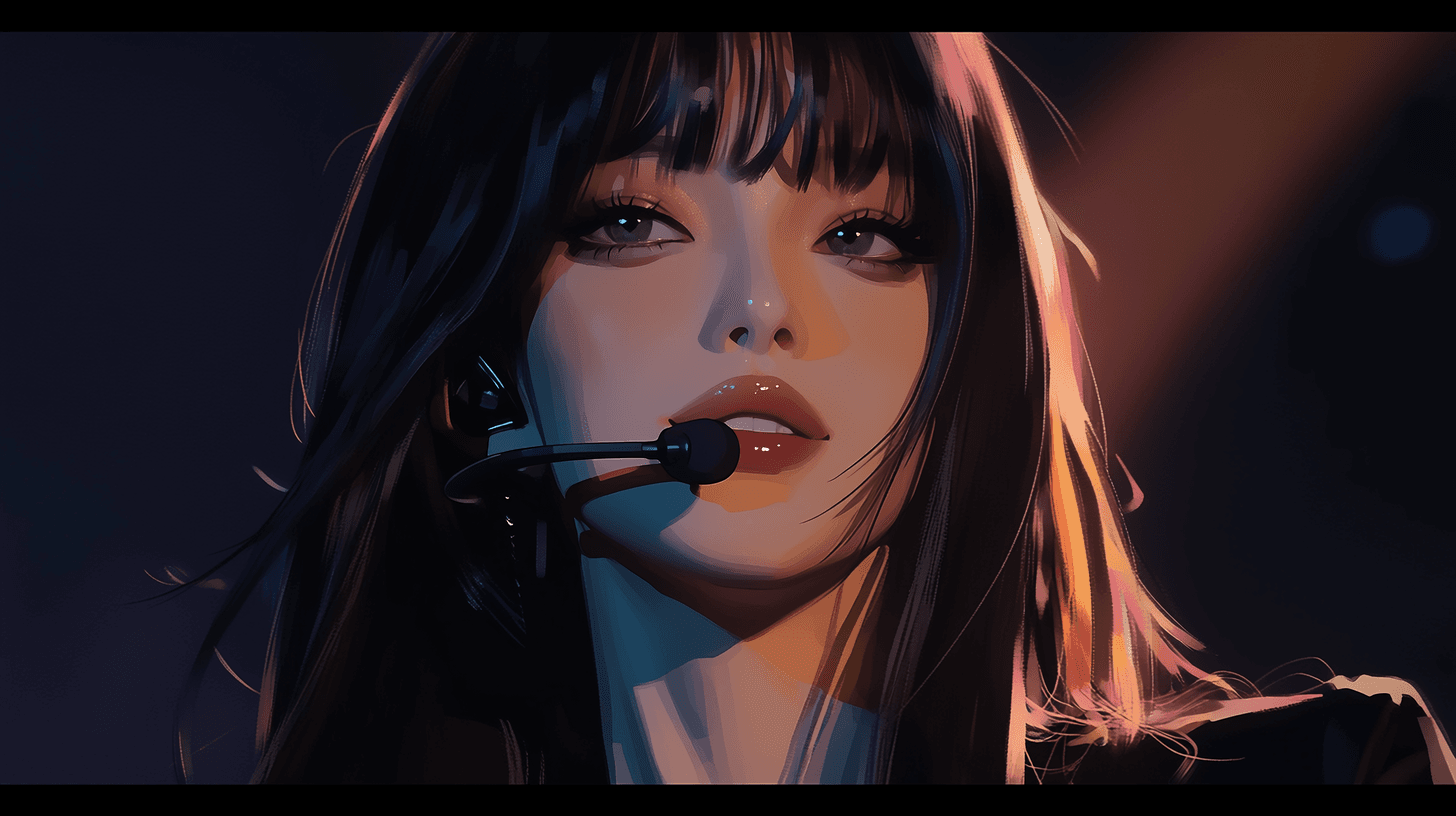
You can make a virtual K-pop idol by designing an original anime-style character, generating clean key art, animating a short dance shot, adding a lip-synced close-up, and editing those moments into a debut-ready vertical teaser.
What You Need Before You Generate
Start with the idol concept, not the tool. A strong virtual idol feels consistent across the character image, motion clip, voice moment, and thumbnail. Before you generate anything, write a short creative brief with the idol's stage name, mood, visual signature, outfit, color palette, and debut hook.
Keep the first version small. One outfit, one hairstyle, one stage mood, and one short line are enough for a first teaser. If you try to generate a full music video immediately, you will spend more time fixing continuity than shaping the performance.
You also need two kinds of reference assets:
- A full-body image for dance and performance shots.
- A portrait or upper-body image for lip sync and spoken lines.
- A short audio line or script for the close-up.
- A music or beat edit for the final external cut.
Avoid asking for a copy of a real idol. Use original traits such as "silver bob haircut," "neon teal stage jacket," or "star-shaped cheek accent" instead of real celebrity names. The goal is a new performer with a clear identity, not a lookalike.
The DomoAI Workflow
DomoAI works well for this scene because the idol needs more than one asset. You need character art, motion, lip sync, and final polish. A practical workflow is to build the idol in stages: key art first, dance second, talking or singing close-up third, then edit the result into a short debut teaser.
For character design, use Text to Image or GPT Image2 inside DomoAI to create the original idol artwork. For movement, use Image to Video when you want to animate a still image into a short clip, or Character to Video when you have a motion reference and want the virtual idol to follow that movement. For the close-up, use Talking Avatar to generate a lip-synced speaking moment from a portrait.
Talking Avatar is best treated as the idol's intro shot or reaction line. It can use a portrait image, script, voice, action prompts, emotions, voice tone variations, voice cloning from uploaded audio, and multi-language output. For final music, captions, beat cuts, and pacing, finish the teaser in your editing app.
Design an Original Idol Concept
Write the concept in a way that can survive multiple generations. A useful formula is:
stage name + idol role + visual motif + outfit + stage mood + personality
For example: "Rina V, a confident virtual K-pop main dancer with teal star motifs, a cropped silver jacket, high ponytail, glossy black boots, and a playful futuristic stage presence." This gives the image model enough structure without locking you into a real person.
Make the design readable at phone size. Big shapes matter more than tiny details: hair silhouette, jacket color, one accessory, and a strong pose. If the character looks distinct as a small thumbnail, it will usually hold up better in a vertical short.
Generate Character Key Art With GPT Image2
Use GPT Image2 inside DomoAI for the first character pass. Generate a full-body key art image with a clean pose, visible hands, visible shoes, and a simple stage background. Keep the prompt focused on the idol, not a whole crowd or complicated concert set.
If you get a good face but weak outfit, revise the prompt around the outfit. If the outfit is strong but the face changes too much, reuse the best image as your visual reference and ask for variations that keep the same character identity. Save one full-body image for dance shots and one portrait crop for the lip-sync close-up.
A simple key art prompt can be:
Original virtual K-pop idol, anime style, full-body key art, teal and silver stage outfit, star-shaped cheek accent, confident debut pose, clean hands, glossy black boots, bright pop stage lighting, no real celebrity likeness.
Animate the Dance Shot
For the dance section, choose a short chorus move or pose transition. A 5-10 second motion is easier to control than a full routine. Use a full-body image with clear limbs, avoid heavy props, and keep the camera direction simple.
If you have a reference dance video, Character to Video can help preserve the motion while changing the character. If you only need a short animated idol moment, Image to Video is the simpler path. Use the best result as one shot in the teaser rather than expecting one generation to carry the whole video.
Useful motion language includes "idol chorus dance," "confident step forward," "hand-heart gesture," "turn to camera," and "ending pose." Avoid prompts that ask for too many moves at once. One clean move usually looks more professional than five unstable moves.
Add a Lip-Synced Close-Up
Use the portrait image for the close-up. In Talking Avatar, upload the portrait, enter a short script, choose or provide a voice, add action prompts, and set the emotion. Keep the line short for your first test.
For a debut teaser, a spoken line is often more reliable than a long sung phrase:
"Hi, I'm Rina V. This is my first stage."
You can also test a short chorus phrase if you already have clean audio. For more focused lip work, try the AI video lip sync path when the main goal is matching mouth movement to audio. Keep background music and final beat editing outside Talking Avatar, since the Talking Avatar workflow is for the avatar line itself.
Edit the Debut Teaser
Think in three shots: reveal, performance, close-up. Open with a name card or pose, cut to the dance move on the beat, then add the lip-synced intro or chorus line. End with a freeze frame, logo mark, or "debut soon" caption.
For short-form platforms, a 9:16 vertical teaser between 7 and 15 seconds is enough. Keep captions short and readable. If a clip is worth keeping, use Video Upscaler before the final export, especially if you want the teaser to look cleaner on larger screens.
For more inspiration around stylized music-video workflows, the anime music video creation guide and AI VTuber maker pages are useful adjacent references.
Pick The Right Shot
Choose the workflow based on the shot you need. A virtual idol page usually needs more than one mode, because dance shots and lip-sync shots solve different problems.
GPT Image2 key art
- Best for: Original idol design and visual identity.
- Source asset: Text prompt or visual reference.
- Practical note: Create full-body and portrait versions before animation.
Image to Video
- Best for: Short stage motion from a still image.
- Source asset: Full-body idol image.
- Practical note: Good for simple performance shots and pose transitions.
Character to Video
- Best for: Dance moves from a reference clip.
- Source asset: Character image plus motion video.
- Practical note: Best when you want a specific dance rhythm or body motion.
Talking Avatar
- Best for: Spoken intro, reaction, or lip-synced close-up.
- Source asset: Portrait image plus script or voice.
- Practical note: Keep the line short and emotion clear.
External editor
- Best for: Final teaser structure, music, captions, and beat cuts.
- Source asset: Generated clips and audio.
- Practical note: Use this for pacing, music, and platform-ready export.
Prompts For Character, Dance, And Close-Up Shots
Use prompts as starting points, then tighten them after you see the first result. The most important controls are originality, shot type, pose clarity, and character consistency.
Full-body key art
- Prompt: Original virtual K-pop idol, anime style, teal and silver stage outfit, star cheek accent, confident debut pose, full body, clean hands, bright stage lighting, no real celebrity likeness.
- Use it for: First character design pass.
Dance shot
- Prompt: Virtual idol performing a short K-pop chorus move, confident step forward, hand-heart gesture, clean full-body framing, bright concert lights, steady camera.
- Use it for: Image to Video or motion planning.
Talking close-up
- Prompt: Close-up of the same virtual idol, playful smile, subtle head movement, expressive eyes, pop stage lighting, ready for lip sync.
- Use it for: Portrait image for Talking Avatar.
Thumbnail
- Prompt: Debut teaser thumbnail, original anime K-pop idol looking at camera, bold teal stage lights, clear face, readable empty space for title text.
- Use it for: Social preview image.
What To Check Before Posting
Check consistency first. The face, hair, outfit, and color accents should still read as the same idol across the full-body shot, dance clip, and close-up. If the character changes too much, regenerate the weak shot with a stronger reference and fewer new details.
Then check motion. Look for warped hands, unclear footwork, drifting accessories, or camera movement that distracts from the performance. A simple clean move is better than a complex unstable routine.
Finally, check rights and platform fit. Use original character prompts, avoid real-idol likenesses, and make sure your audio is cleared for the platform where you will post. Add captions for the spoken line, because many viewers watch short videos muted at first.
FAQ
Can AI make a complete virtual K-pop idol?
AI can help you create the character art, animate a dance shot, and generate a lip-synced close-up. You still need creative direction, music or audio choices, and editing to turn those pieces into a finished idol teaser.
What image should I use for an AI idol dance video?
Use a clean full-body image with visible limbs, simple clothing shapes, and minimal props. A clear standing pose gives motion tools a better starting point than a cropped portrait or crowded stage image.
Can I make the idol speak or sing?
Yes, a portrait image can be used with Talking Avatar for a short spoken or lip-synced moment. For best results, start with a short line, clear audio, and one emotion instead of a long performance.
Should I copy the look of a real K-pop idol?
No. Build an original character with your own name, outfit, colors, and visual motif. You can take broad inspiration from idol performance language, but avoid names, likenesses, or prompts that request a real person.
What is the best length for a virtual idol debut teaser?
Start with 7-15 seconds. That is long enough for a reveal, one dance move, and one close-up line, while staying short enough to revise quickly.
Where does DomoAI fit in the workflow?
DomoAI can help with character art, image animation, character-to-video motion, Talking Avatar lip sync, and video upscaling. Final music placement, captions, and beat editing should be handled in your editing app.