
How to Make A Good Talking Pet Video

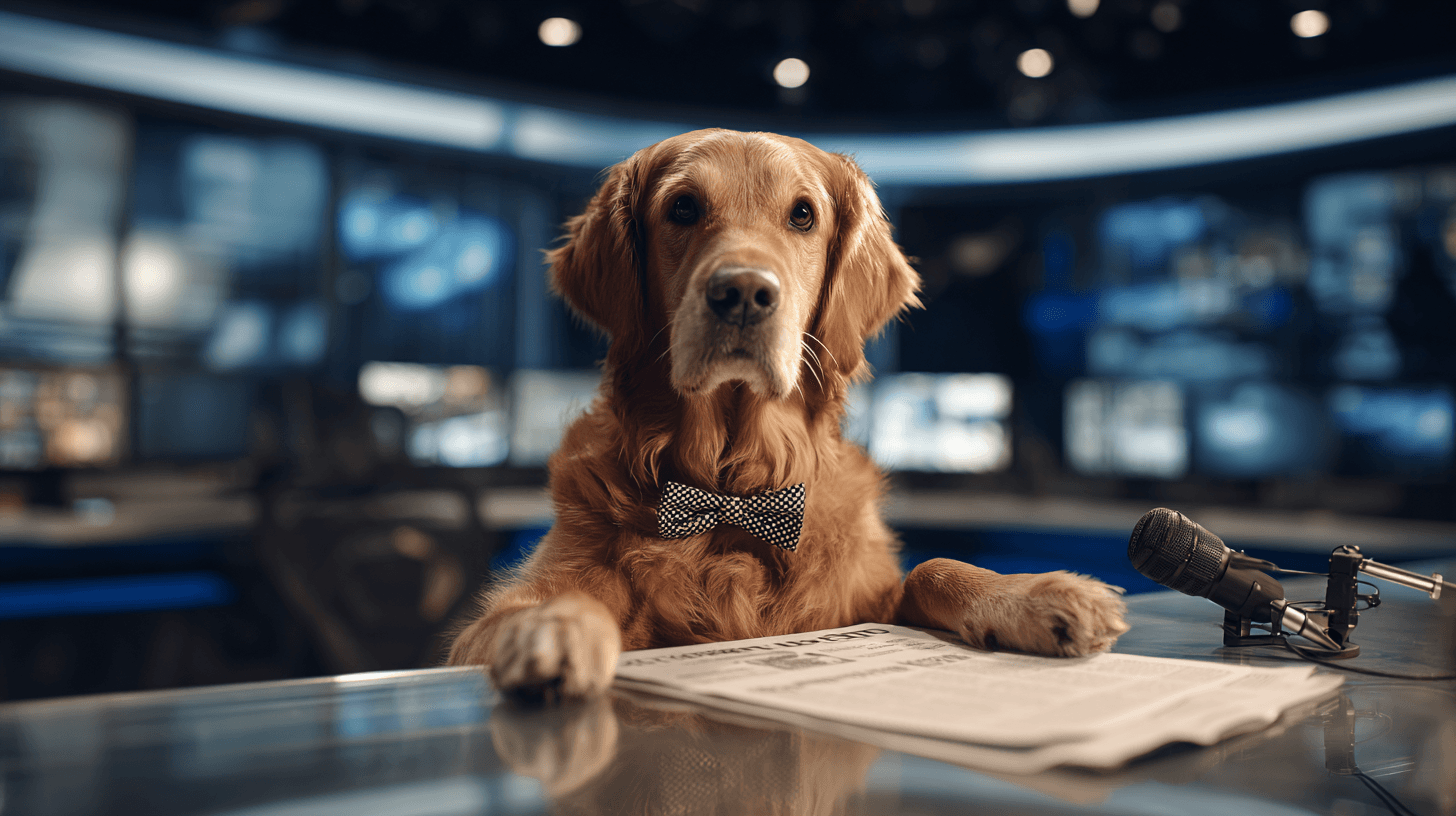
To make a talking pet video, start with a clear close-up photo of your dog, cat, or other pet, write a short first-person script, choose a voice and emotion, then generate a lip-synced clip you can caption and post.
What Makes A Good Talking Pet Video
A good talking pet video feels simple. The pet has one clear thought, the voice matches the personality, and the motion stays small enough that the animal still looks like itself.
Most strong clips are short. A dog complaining about dinner, a cat judging the room, or a pet saying happy birthday can work in 5-15 seconds. Long speeches usually make the lip movement harder to trust and give viewers more time to notice small flaws.
The best format is not "make the animal do everything." It is "make one photo deliver one line well." That keeps the workflow fast and gives you a reusable format for Reels, TikTok, Shorts, birthday messages, adoption updates, and pet influencer posts.
The Fast DomoAI Workflow
Use DomoAI Talking Avatar when you want a still pet portrait to speak. The workflow fits this task: upload a portrait, enter a script and select a voice, add action prompts, then generate the video.
If you want a quick entry point, the Talking Avatar is the closest fit. If you want extra movement without speech, use image animation after you make the talking version.
1. Choose A Clear Pet Portrait
Start with a sharp image where the pet faces the camera. The eyes should be visible, the mouth area should not be hidden, and the background should not cover the head or ears.
Good source images usually have:
- A front-facing or three-quarter face
- Bright, even lighting
- No motion blur
- A simple background
- No toy, hand, or treat blocking the mouth
- Enough space around the head for captions or cropping
Side profiles can still look cute, but they give the model less information for speech. Heavy fur, open mouths, and strong shadows can also make the final video less stable.
2. Write A Short Pet Script
Write the line as if your pet is speaking in first person. Keep it specific and short. A small opinion is better than a long monologue.
Good script patterns:
- "I saw the snacks. I chose peace."
- "The walk was too short. I have notes."
- "This is my chair now."
- "Happy birthday. I allowed the cake."
- "I heard the bag open from across the house."
For social clips, aim for 8-20 words. A short line gives the mouth fewer sounds to match and makes the joke easier to read with captions.
3. Pick A Voice And Emotion
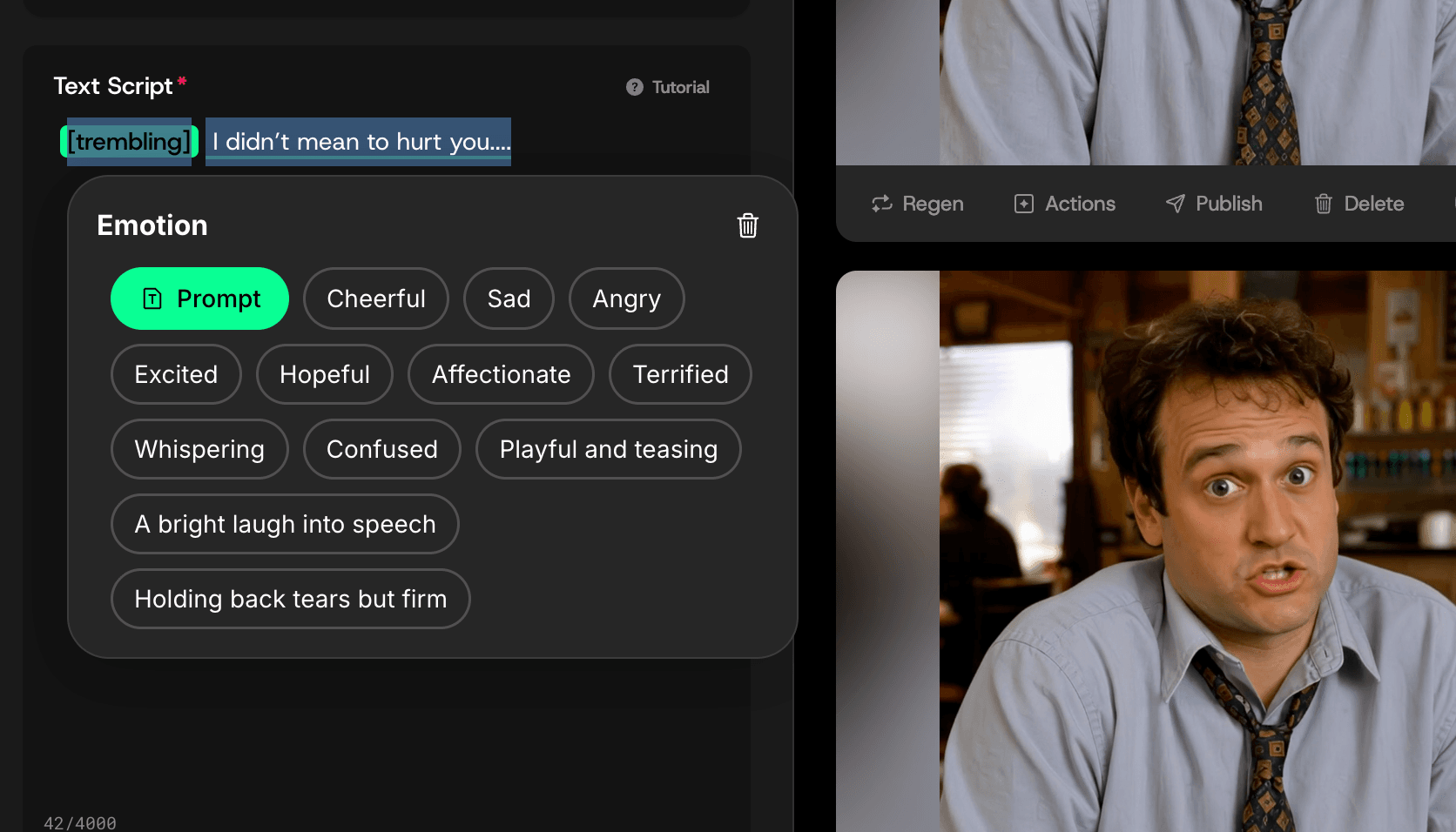
DomoAI Talking Avatar supports voice selection, voice cloning from uploaded audio, 6 emotion settings, 6 voice tone variations, and multi-language support. You can type a script, choose a generated voice, or upload audio. Supported uploaded audio formats include MP3, WAV, and M4A up to 80MB.
Match the voice to the pet character. A small dog might get a bright, nervous voice. A sleepy cat might get a dry, calm voice. A big older dog might sound warm and slow.
Use one emotion per clip. "Happy," "dramatic," "calm," or "confused" gives the model a clear direction. Mixing too many emotions can make the expression feel messy.
4. Add Subtle Action Prompts
Action prompts help the pet feel expressive. Keep them small and physical. You want the face to support the line, not fight it.
Sample Prompts
Primary — Talking Avatar
Start from a clear front-facing photo of the pet plus your voiceover.
Talking Avatar — 8s, 9:16. Start from a clear front-facing photo of a small tan-and-white corgi, soft indoor light. The same corgi throughout — same fur pattern, eye color, collar.
0–3s: relaxed and happy, natural blinks, ears perking once, subtle mouth movement lip-syncing the first line, tiny head tilt to the right.
3–6s: a curious look, soft eyes, one ear flicking, gentle mouth movement on the next line, no large body motion.
6–8s: settles, slow blink, calm closed-mouth hold.
Camera locked, no movement. Warm indoor lighting holds. Keep the face, fur, and collar consistent — no drift, no warping, no human features, no text or watermark.
Single-mood variants
Same locked-subject discipline, swap the beat.
Happy (5s):
Talking Avatar — 5s, 9:16. The same tan-and-white corgi from the photo, soft indoor light, locked camera. 0–2s: bright happy expression, ears perk, one natural blink. 2–4s: small head tilt right, subtle mouth movement lip-syncing the line. 4–5s: settle, gentle blink. Keep fur, eyes, and collar consistent — no drift, no warping, no text or watermark.
Calm / dramatic (5s):
Talking Avatar — 5s, 9:16. The same corgi, dim warm key light from the left, locked camera. 0–2s: calm steady gaze, slow blink. 2–4s: a tiny ear movement, gentle measured mouth movement on the line. 4–5s: hold, closed mouth, composed. Keep the face and fur consistent — no drift, no warping, no text or watermark.
Curious (5s):
Talking Avatar — 5s, 9:16. The same corgi, even daylight, locked camera. 0–2s: curious look, soft wide eyes, head tilts slightly. 2–4s: natural mouth movement lip-syncing the line, one ear flicks. 4–5s: settle, slow blink, no body motion. Keep fur, eyes, and collar consistent — no drift, no warping, no text or watermark.
Avoid asking for big jumps, dancing, running, or full-body action inside a talking portrait prompt. If you need body motion, create that as a separate clip with DomoAI Image to Video for a non-speaking pet moment.
5. Review, Caption, And Export
After generation, review the clip like a viewer would. Check the mouth area, eye movement, caption space, and first second. If the clip feels off, simplify the script or action prompt.
Most social viewers watch with sound off at first, so add captions. Put the key line on screen in large text and keep it away from the pet's mouth.
Talking Avatar does not add background music directly. Export the MP4, then add music, sound effects, captions, and platform crops in CapCut, Premiere Pro, DaVinci Resolve, Canva, or your social app editor.
For a cleaner final post, use DomoAI Video Upscaler after you have a clip worth keeping. Upscaling helps more with a good clip than with a weak source photo.
Workflow Options Compared
| Workflow option | Use it when | DomoAI path | Watch for |
|---|---|---|---|
| Talking pet speech | You want one pet photo to speak a short line | Talking Avatar | Needs a clear face and a short script |
| Existing pet voiceover | You already have recorded audio or a cloned voice | AI Video Lip Sync | Clear audio improves mouth timing |
| Non-speaking pet motion | You want a blink, head movement, or cute animated moment | Image Animation | Big motion can distort the pet |
| Social photo animation | You want a broader still-photo animation workflow | DomoAI Image to Video | Use this separately from the speaking clip |
| Final polish | You want the exported clip to hold up on larger screens | Video Upscaler | Upscale only after you like the motion |
Script And Prompt Examples
| Pet type | Script | Voice direction | Action prompt |
|---|---|---|---|
| Dog | "The walk was good. The walk was not long enough." | Warm, slightly dramatic | Happy eyes, small head tilt, natural blink |
| Cat | "I knocked it over because it was in my way." | Calm, dry, confident | Slow blink, tiny ear movement, relaxed face |
| Puppy | "I regret nothing. Also, I need a snack." | Bright and playful | Excited eyes, small smile, subtle mouth movement |
| Senior pet | "I have been patient for dinner." | Gentle and slow | Soft expression, calm blink, steady face |
| Birthday pet | "Happy birthday. I saved you one bite." | Cheerful and warm | Happy expression, slight head tilt, bright eyes |
Use these as starting points. Swap in your pet's name, favorite food, favorite habit, or the joke your audience already knows.
Fixes For Common Talking Pet Problems
If the mouth looks strange, shorten the line first. A five-word joke often works better than a full sentence with many mouth shapes.
If the pet looks like a different animal, choose a cleaner photo. Avoid heavy filters, wide-angle distortion, low light, and photos where the face is partly hidden.
If the expression feels too intense, remove extra emotion words. "Happy expression" is easier to follow than "super excited, shocked, laughing, and surprised."
If viewers do not understand the joke, add captions and a setup. For example, show "When the treat bag opens" before the pet speaks.
If the clip could look like real animal behavior, make the AI context clear. This matters for realistic pet shorts, rescue stories, health claims, or anything that could mislead viewers.
For broader social editing ideas, pair the clip with DomoAI's guide to animate photo content for social media. You can also explore more scene formats from the DomoAI Make hub when you want a different creator workflow.
FAQ
Can I make a pet talk with one photo?
Yes. Use a clear close-up pet portrait, add a short script, choose a voice and emotion, and generate a talking avatar-style clip. Front-facing photos usually work best.
What kind of pet photo works best?
Use a sharp, well-lit image where the pet's face is visible. Avoid side profiles, hidden mouths, heavy shadows, motion blur, and busy backgrounds.
Can I use my own voice for the pet?
Yes. DomoAI supports voice cloning from uploaded audio and accepts MP3, WAV, and M4A files up to 80MB.
Why does my talking pet video look fake?
Common causes include a blurry photo, side-facing pet, long script, exaggerated action prompt, or mouth area hidden by fur, toys, or shadows.
Can I post AI talking pet videos on TikTok or YouTube Shorts?
Yes. Add captions, crop for the platform, and make the AI-made nature clear when the clip could confuse viewers.
Can DomoAI add background music inside Talking Avatar?
No. Generate the talking pet clip first, then add music, sound effects, and captions in an external editor.