
Build an Animated Sitcom Scene With Three Recurring Characters

Make one clean reference image per character in DomoAI. Animate each line as a short clip with Image to Video / Seedance 2.0, sync the dialogue with Talking Avatar, then stitch the beats together. The same saved cast carries every future episode.
Why episodic AI sitcoms fall apart
A sitcom is a cast you keep coming back to — the joke only lands because you already know these three people. That's also where AI animation tends to break. Most tools redraw a character from scratch on every generation, so your lead's haircut, jaw, and outfit shift between shots. Across a single scene that reads as glitchy. Across an "episode 2" it kills the series, because viewers no longer recognize the cast they were supposed to bond with.
Then there's the three-person frame itself. When three characters share a shot, a model that's loose on identity blurs them into each other — same face, same palette, same body — and the audience loses track of who's speaking. Timing and voice are the last trap: dialogue comedy lives on the cut and the back-and-forth, so one long take in one flat voice flattens every joke.
The fix is to stop generating from nothing. Every shot starts from saved reference art, so the same trio comes back shot after shot, week after week. You build each line as its own short clip, give each character a distinct voice, and cut the beats together where the comic timing actually happens. You're not making one clip — you're setting up a show you can keep producing with the same three faces, voices, and set.
What you'll end up with
A short, cut-together scene of three characters trading lines — the kind of exchange a sitcom runs on. Because every shot starts from saved reference art, the same cast can return next week and the week after. The set stays the same, the voices stay the same, and the look holds from scene 1 to scene 12.
Build the episode
Cast your three characters
Generate or upload one clean, front-facing reference per character. Make the cast with GEN Image from a text prompt, or refine an existing illustration in AI Image Editing using GPT Image 2 or Nano Banana Pro. This single image holds each look steady across shots, so make it readable. Give each character a distinct silhouette and a distinct palette. A tall character in green, a short one in red, a mid one in blue stay legible even when all three crowd one frame. Save every reference to your Assets so you reuse the exact same file each time.
Design the recurring set once
Build the apartment, diner, or office the cast keeps returning to as a separate reference in GEN Image, then drop your characters into that world. A locked set is half of what makes a series feel like a series — viewers should recognize the room as fast as they recognize the people.
Write the beats and assign voices
Break the exchange into short lines — one beat per character turn. Give each character their own line and pair each one with a separate Talking Avatar voice so the trio sounds distinct when they trade dialogue. Standard plans run 5, 10, or 20 seconds per avatar clip; Pro adds 30 and 60. Keep individual lines short — sitcom rhythm is fast, and shorter clips re-render cheaply when a take misses.
Animate each line
Turn each character's beat into motion with Image to Video / Seedance 2.0, prompting the camera and the action per shot (push in on the reaction, hold on the deadpan). Then sync the spoken line with Talking Avatar so the mouth matches the voice. Render each line as its own short clip rather than chasing one long take.
Stitch, re-render, and export
Cut the beats together in an editor like CapCut, Premiere Pro, or DaVinci Resolve — sitcom timing lives in the cuts, not in one continuous shot. Re-render any beat where a face drifts, bridge two beats with Frames to Video when you want a smooth motion transition instead of a hard cut, then export. Frames to Video takes 2–8 keyframes and runs 1–56s, so it's also useful for a quick establishing pan across the set.
A sample three-beat exchange
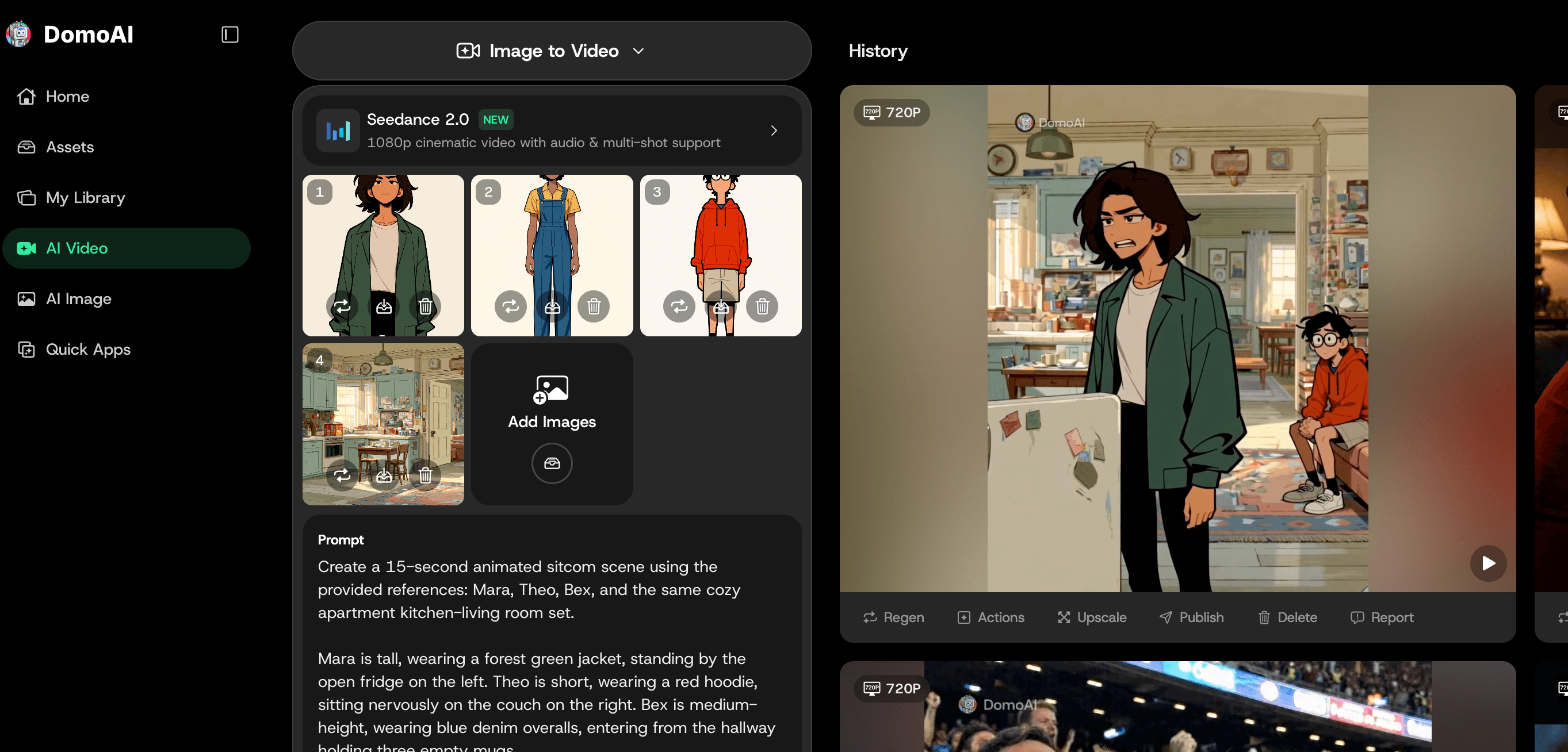
Here's one short cold-open beat for a trio — Mara (tall, green jacket), Theo (short, red hoodie), and Bex (mid, blue overalls) — to show how the pieces map to real settings.
Beat 1 — Mara, 5s clip. Animate prompt in Image to Video / Seedance 2.0: "Mara stands at the open fridge, slow push-in, kitchen set, warm light." Talking Avatar line: "We are completely out of coffee." Voice: calm, dry, low pitch.
Beat 2 — Theo, 5s clip. Animate prompt: "Theo on the couch, head snaps up, fast cut framing, same kitchen-living room set." Talking Avatar line: "Define 'we.'" Voice: higher, quick, anxious.
Beat 3 — Bex, 10s clip. Animate prompt: "Bex walks in holding three mugs, hold on a flat stare, same set." Talking Avatar line: "I drank it. All of it. I regret nothing and I have things to do." Voice: mid, deadpan, steady.
Each beat is one reference image animated once and lip-synced once. Give each character a distinct voice setup so the three reads as three. Then cut Beat 1 → 2 → 3 tight in your editor — the gap between Theo's snap and Bex's entrance is where the timing lands. To run this as episode 2, you reuse the exact same three references and the same kitchen set, and only the lines change.
What keeps three characters readable and on-model
What turns a one-off clip into a series is feeding the tool the same source art every time. Save each character's reference and reuse that exact image in every scene — scene 12 should look like scene 1.
- Lock identity at the source. Reuse the saved reference file, not a screenshot of a previous render. Each new generation should start from the original art so the look never compounds errors.
- Make the trio visually separable. Distinct silhouette, palette, and one signature prop per character keep all three legible in a shared frame. If two characters read as the same person, redesign one before you animate.
- Give each a separate voice. Assign a different Talking Avatar voice per character so the audience tracks who's speaking by ear as well as by eye.
- Keep the set constant. Reuse the same GEN Image set reference across beats so the world doesn't shift mid-scene.
- Render short, cut tight. Short clips per line keep faces stable and let you control comic timing in the edit instead of inside one long generation.
Troubleshooting a sitcom scene
- A character's face drifts between shots. Re-render that beat from the same reference image. If drift keeps happening, simplify the character's design or shoot a cleaner front-facing reference, then re-render only the affected shot — not the whole scene.
- Two of the three look too alike. Push the palettes and silhouettes further apart in AI Image Editing and add a signature prop or outfit detail to each, then regenerate the references before animating.
- The timing feels flat. That's an edit problem, not a generation problem. Trim the heads and tails of each clip in CapCut, Premiere Pro, or DaVinci Resolve so reactions land fast, and tighten the gap before the punchline.
- A line and the mouth don't match. Re-run that beat through Talking Avatar with cleaner audio; keep each line short so lip sync has less to track.
- The cut between two beats is jarring. Bridge them with Frames to Video using the end frame of one beat and the start frame of the next for a smooth motion transition instead of a hard cut.
- The set changes between shots. Reuse the identical GEN Image set reference for every beat; don't regenerate the background each time.
FAQ
Can I keep the same three characters across multiple episodes?
Yes. Save each character reference and feed the tool the exact same image every time you generate. The look holds from one episode to the next because the source art never changes — that's what makes it a series instead of a one-off.
What character art works — anime, cartoon, or my own illustrations?
All of them. Generate a cast in GEN Image or upload anime art, cartoon characters, or your own illustrations and refine them in AI Image Editing. One clear, front-facing image per character gives the most consistent results.
How long can one scene be?
The clips are short, so you build a full scene by stitching beats. Render each line with Image to Video / Seedance 2.0, bridge shots with Frames to Video (1–56s), then assemble in an editor. Talking Avatar runs 5, 10, or 20 seconds on standard plans, with 30 and 60 on Pro.
Can each character have a different voice?
Yes. Assign a separate Talking Avatar voice to each character so the three of them sound distinct when they trade lines. Distinct voices are half of how an audience tracks who's speaking.
What if one character's face changes between shots?
Re-render that beat with the same reference image. If drift continues, simplify the character's design or use a cleaner front-facing reference, then re-render only the affected shot rather than the whole scene.
Which plan do I need?
Any paid plan works for building scenes; the difference is clip length and volume. Standard ($19.59/mo yearly) adds Relax Mode, and Pro ($48.99/mo yearly) adds 30s and 60s Talking Avatar clips. See pricing for current rates and credit allowances.
Start your first episode
Animate your first character and build the opening beat, then save the cast so the same trio carries every episode after. Try DomoAI free.