
Turn a Moodboard Into a Repeatable Show Intro

Your intro looks slightly different every episode — a new palette here, an off-model character there — and the series stops feeling like one show. Lock the look once and reuse it. In DomoAI you build the art style, cast, and colors from a moodboard in GEN Image, animate those frames in Frames to Video, then regenerate the same opening for every episode from saved settings.
The drift problem
Rebuild the title sequence from scratch each week and small differences pile up. The lighting shifts a notch warmer. The hero's jacket changes color, the title font sits a few pixels off, the background skyline gains a building it didn't have last time. None of these is a mistake on its own. Together they tell the viewer something is off, even when they can't name what.
A show intro is the one beat that's supposed to be identical every time. It's the handshake — the three seconds that say "you're in the right place, this is the show you came back for." When the intro drifts, that signal gets noisy. The series reads as a loose collection of episodes instead of one continuous thing, and channels that grow on consistency lose the easiest consistency they had.
Drift creeps in because text-to-image is probabilistic. Ask for "the same anime city at dusk" twice and you get two cousins, not twins. So don't ask twice. Build the intro once as a set of locked frames plus a saved prompt, and treat every later episode as a reload, not a rebuild.
What you'll end up with
A short animated title sequence — a title or logo beat plus a signature character shot and a signature setting shot — rendered in one consistent style and held to a fixed palette. Because it's assembled from saved frames and saved settings, episode two is the same intro as episode one. You reopen your assets, regenerate, and the look matches without redrawing anything. The result is a clean clip a few seconds long, upscaled for delivery, that you drop on the front of every episode.
Lock the look, then animate it
Three moves: pin the style down as still frames, turn those frames into a sequence, then finish for delivery.
1. Lock the style in a moodboard
Collect 4–6 strong references that agree on palette, art style, and your key character or setting. A tight reference set is most of the job — six images that point the same direction lock cleanly, while twelve mixed images pull the look apart. Generate your intro frames in GEN Image and refine the prompt until the cast, colors, and overall feel are right.
Then lock two frames specifically: one hero character frame and one signature setting frame. Those two carry most of the recognizability of the whole sequence, so spend your iteration budget there. If your title text or logo has a fixed treatment, bake it into its own keyframe too — GPT Image 2 handles clean typography and readable text better than the anime-tuned models. Save everything to your Assets so you can pull it back without re-uploading.
2. Animate the frames into a title sequence
Drop your locked frames into Frames to Video to build a 1–56 second sequence from 2–8 keyframes. This is where Frames to Video fits an intro and a general video model doesn't. An intro has a defined start, middle, and end — a title reveal that has to land on the same beat every time. Keyframes give you that control.
Write a per-segment motion prompt for each transition so the camera move and the title reveal behave the same way on every regeneration. Keep the moves small and repeatable — a slow push, a single pan, a clean fade up on the title.
Prefer one board over stepping through keyframes? Build a single style moodboard in GPT Image 2 — palette, line weight, lighting, and character style all on one board — then feed that board into Seedance 2.0 as a reference image. Seedance reads the board's style and generates the intro motion in that exact look, so one board sets the whole sequence. Pick Frames to Video when you want a fixed title reveal to land on the same beat every time; pick the GPT Image 2 moodboard → Seedance 2.0 route when one board should define the style and you want cinematic motion generated to match.
3. Polish for delivery
Run the finished intro through the Video Upscaler to 4K so the title sequence holds up on a TV-sized screen and matches the resolution of your episode body. This is also the pass where a thin or aliased title edge cleans up.
A concrete example
Here's a full intro you could build and reuse.
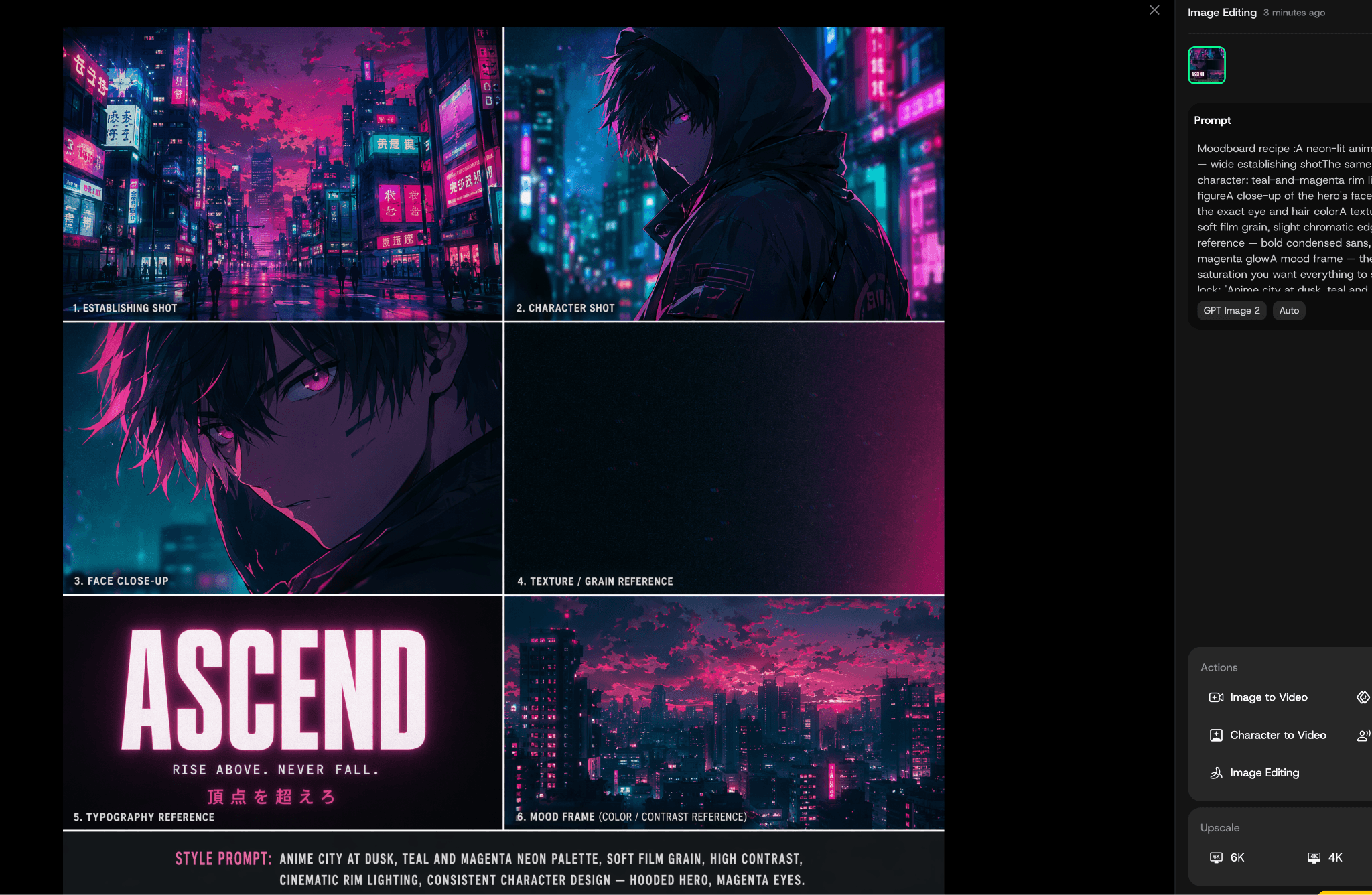
Moodboard recipe (6 references for GEN Image):
- A neon-lit anime city street at dusk — wide establishing shot
- The same palette on a character: teal-and-magenta rim light on a hooded figure
- A close-up of the hero's face, three-quarter angle, the exact eye and hair color
- A texture/grain reference — soft film grain, slight chromatic edge
- A typography reference — bold condensed sans, white with a thin magenta glow
- A mood frame — the overall contrast and saturation you want everything to sit at
Style prompt to lock: "Anime city at dusk, teal and magenta neon palette, soft film grain, high contrast, cinematic rim lighting, consistent character design — hooded hero, magenta eyes."
Per-keyframe motion-prompt set for the title beat:
- Keyframe 1 → 2 (setting → hero): "Slow forward push through the neon street toward the hooded hero, camera steady, lights bokeh in background."
- Keyframe 2 → 3 (hero → title card): "Hold on hero, then fade up the title text centered over the scene, text settles, no camera movement."
- Keyframe 3 (title hold): "Title fully visible, gentle neon flicker on the lettering, hold two seconds."
Save the moodboard, the style prompt, the locked frames, and this motion-prompt set together. That bundle is your intro. Episode two reloads it.
What makes a locked intro hold
- A tight moodboard. 4–6 references that agree beats 10 that argue. Fewer, more consistent references give the model one clear target.
- Two anchor frames. Lock a hero frame and a setting frame deliberately and treat them as canon. Everything else can flex; those two can't.
- A written-down palette. Name your colors in the prompt (teal, magenta) instead of trusting the model to remember. Named colors regenerate truer than implied ones.
- Small, repeatable motion. A slow push and a clean fade reproduce reliably. Big, complex camera choreography drifts more between runs.
- One fixed title treatment. Generate the title card once, save it, reuse the exact frame — don't regenerate the typography each episode.
Troubleshooting
A frame comes back off-style. Don't rebuild the sequence. Regenerate just that one frame in GEN Image with your saved prompt and moodboard, then drop the corrected frame back into your keyframe set in Frames to Video before animating. Your locked assets are a library you patch, not a project you redo.
The palette drifts warmer or cooler. Add the hex feel back to the prompt with explicit color words and pull your mood/grain reference back into the moodboard. When one regeneration shifts, re-roll rather than color-correcting downstream — a fresh pass on the saved prompt usually lands closer than an editor fix.
The title text is hard to read. Generate the title card in GPT Image 2 for cleaner typography, give the text a contrasting edge against the background, and hold it on a calmer keyframe so motion isn't fighting legibility. Then let the Video Upscaler sharpen the final edges.
Reuse it every episode
This is the part that pays off. Once the first intro lands, save your winning prompt, your reference frames, your title card, and your style settings to Assets. For the next episode, reload them in GEN Image and Frames to Video and regenerate the same opening — no fresh moodboard, no re-tuning, no redrawing. Need a variant, like a season-two color shift or a holiday version? Fork the saved bundle instead of starting over. The first build is the only expensive one; every episode after is a reload. See the same locked-asset idea applied to a full cast in Make a Three-Character Animated Sitcom Scene and Make a Faceless History Short With Consistent Characters, or to a moving shot in Make a 2D Cartoon Walk-and-Talk.
FAQ
Can I reuse the exact same style for every episode?
Yes. Save your prompt, reference frames, title card, and style settings after the first intro, then reload them in GEN Image and Frames to Video to regenerate the same look for each new episode.
How many reference images should a moodboard have?
Use 4–6 strong references. A tight set gives a clear, lockable style; too many mixed images push the look in different directions and make it drift.
Can I lock both the characters and the background style?
Yes. Generate a hero character frame and a signature setting frame in GEN Image, then carry both into Frames to Video so the cast and the world stay consistent across episodes.
What if one frame drifts off-style?
Regenerate only that frame in GEN Image using your saved prompt and moodboard, then drop the corrected frame back into your keyframe set before animating. You patch the one frame, not the whole sequence.
Can I add my show's title text or logo?
Yes. Generate the title or logo as its own keyframe — GPT Image 2 is best for clean text — then animate it as the title beat in Frames to Video and reuse that exact frame every episode.
Is Frames to Video the same as a long video model?
No. Frames to Video builds a controlled 1–56 second sequence from 2–8 keyframes, which is what an intro needs — a defined start, middle, and reveal — rather than one open-ended generation.
Build it once
Lock your style in GEN Image, animate it with Frames to Video, upscale it, and save the bundle so every episode reuses the same opening. DomoAI keeps all of it in one place. See plans on pricing — Basic is $6.99, Standard $19.59, and Pro $48.99 billed yearly, with Relax Mode on Standard and Pro. Try it free.