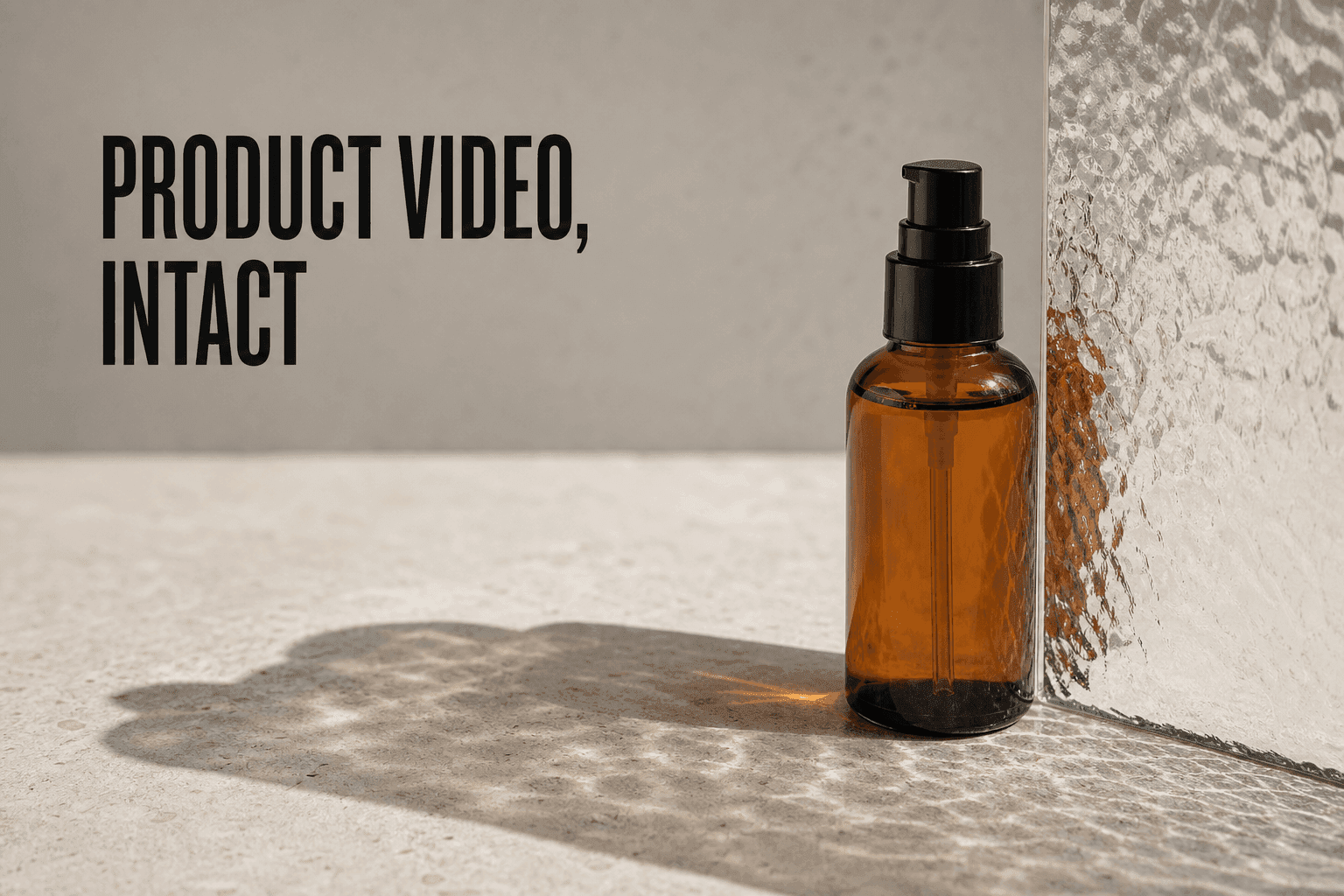
Warping happens because the model is guessing. Give it a clean source image, keep motion small, generate several takes, and pick the cleanest one. That's the whole system.
Why Products Warp in AI Video
AI video models don't understand that your label is a label. They see pixels. When those pixels move — because you asked for rotation, a camera push, or atmospheric motion — the model redistributes them frame by frame. Text and logos are the hardest to preserve because letterforms are precise: a single-pixel shift on a letter edge looks like a smear.
The root cause is two factors combining: visual complexity in the source image plus too much requested motion. The more complex the label, the more the model has to reconstruct it across frames. The more movement you ask for, the more frames it has to reconstruct.
Different product shapes warp in different ways. Knowing your product type tells you where to focus your effort.
Bottles and cans are cylindrical. The label wraps around a curve, and the model miscalculates that curve from frame to frame. Even a 30-degree turn reveals label area that wasn't in the original frame — the model invents it, and it's rarely accurate.
Flat packaging — boxes, cartons — behaves differently. Hard corners drift and straight lines develop a slight curve. Less dramatic than cylinders, but still visible on close inspection.
Flexible packaging (pouches, stand-up bags, mylar wraps) produces the worst warping overall. There's no rigid structure for the model to anchor to, so the surface deforms unpredictably. For flexible packaging, the composite method — lock the product, animate the scene — is almost always the right approach.
Start With the Right Source Image
The source image is the single biggest lever. A stronger input produces a more stable output.
Option A — Use your own product photo: Shoot front-facing or at a slight three-quarter angle, label fully in frame, at least 1080×1080px, well-lit with no harsh shadows splitting the label. A neutral or plain background keeps the model's attention on the product.
Option B — Generate the product image first: This often produces cleaner animation results than using a real photo. Use GPT Image 2 or Nano Banana Pro for this step, both of which are also accessible through an AI Image Generator such as Higgsfield.
GPT Image 2 handles text and logos better than most image generators. When your label has specific typography, use a prompt like: "product photo of a black glass bottle with a white minimalist label reading 'MINERAL WATER', front-facing, white background, studio lighting, sharp edges, no reflections." Describe the label text exactly as it should appear.
Nano Banana Pro is the better choice when you need multi-reference consistency. It accepts up to nine reference images and outputs at 4K, saving directly to Assets. Use it when brand consistency across a product line matters more than generating from scratch.
Product Type Guide
The approach that works for a beverage can is not the same approach that works for a mylar pouch. Here's what to do for each major product category.
Beverages (bottles, cans): Generate a clean studio still with GPT Image 2 for any label with specific text. Prompt the motion as "product held by a gentle atmospheric force, slight rotation (15 degrees max), condensation forming, warm side light." Keep rotation to 15 degrees or less. For cans with wrap-around labels, stay front-facing.
Cosmetics (tubes, boxes, compacts): Flat box surfaces hold better than cylindrical tubes. Generate at a slight 3/4 angle and prompt "no rotation, gentle parallax drift." For compacts and palettes, open-lid shots animate well. Prompt "product stays open, camera slow push, light shifts."
Packaged food (bags, pouches, wrappers): Flexible packaging warps the most. Use the composite method: animate the background scene, composite the product image as a locked still over it. The product never moves, so there is nothing to warp. For rigid-box products — cereals, pasta boxes, tea tins — treat them like flat packaging.
Clothing and textiles: The challenge here isn't label stability — it's natural fabric behavior. Prompt "gentle fabric flutter, natural light, slight breeze." Keep motion light.
Keep the Motion Small
Image to Video with Seedance 2.0 gives you the most control over motion. The prompt you write for motion matters as much as the source image.
A small, specific motion prompt leaves less for the model to guess. A vague or ambitious prompt means more interpolation, and more interpolation means more opportunities for the label to drift.
Four motion prompts ranging from safest to riskiest:
Safe: "slow push in from front, product stays centered, soft studio light shift, no background movement"
Safe: "product gently rotates 15 degrees left, warm light from right, camera holds still"
Moderate: "condensation droplet slowly forms on the bottle surface, atmospheric steam in background, camera holds still"
Avoid: "product spins full 360 degrees, dramatic zoom into label"
Notice that the safest prompts move the light, not the product. Atmosphere does more visual work than rotation.
Motion Prompt Words That Help vs. Hurt
Words that help stability: "slow," "gentle," "holds still," "no movement," "camera holds," "subtle," "atmospheric," "light shift," "parallax," "condensation," "steam."
These signal to the model that minimal motion is acceptable — that the quality comes from the scene, not the movement. A prompt built mostly from these words is always the safer starting point.
Words that hurt stability: "spin," "rotate," "360," "full rotation," "swipe," "zoom in fast," "dramatic," "tilt."
These ask the model to show the product from angles it wasn't given in the source image. The model has to extrapolate what the label looks like from those new angles, and it guesses.
The distinction isn't about the word itself. It's about whether the prompt asks the model to invent label area it never saw. "Slow rotation 10 degrees" is safer than "rotation 45 degrees" because 10 degrees stays mostly within the source frame.
Neutral but useful: "slow push in," "gentle drift," "product centered," "camera holds." Pair these with a specific atmospheric element — "condensation," "steam," "light shift" — and you give the model something to render while keeping the product stable.
Generate Variations and Pick the Best One
One generation is a test, not a final. Generate four to six takes of the same prompt, then review them against a consistent checklist before picking.
What to check, frame by frame:
- Frame 1: Is the label fully legible? Compare font weight and letter spacing against your source image. Any blurring here means the generation is already unstable.
- Frames 5–10: Has the silhouette drifted? A bottle that widens mid-clip, a can that changes proportions, or a cap that shifts position is a discard.
- Last frame: Does the logo still match your logo? Letter shapes should be consistent with frame one.
- Throughout: Are hard edges — caps, seams, label borders — staying crisp, or are they blurring and flickering?
The goal is to find one take where the product looks identical at frame one and at the last frame.
On Relax Mode: Standard ($19.59/mo) and Pro ($48.99/mo) plans include Relax Mode, which lets you generate without spending credits. Treat Relax Mode as your testing queue — run your first batch there, identify what's working, and spend credits on the refined version. See current plan details.
When All Your Takes Are Warping: Diagnosis
If you generate six takes and every one of them warps, the problem is diagnosable. Work through this in order.
All six warp at the same point in the clip: The source image has an edge or detail the model can't hold. Fix: simplify the source image. If you're using a real product photo, switch to a generated image via GPT Image 2.
Some takes warp more than others: The motion prompt is borderline. Pick the least-warped take and reduce motion intensity by one step. Small reductions in motion often produce large improvements in stability.
Only one or two out of six warp: That's normal. Those are your discards. You don't need six stable clips — you need one.
Warping only happens in the last few frames: The model started stable but drifted as the generation extended. Try a shorter generation, or composite the last few seconds with a locked still frame from the source image.
Lock the Product, Animate the Scene
When the product is complex — dense label, foil finish, multiple typefaces — the cleanest option is to not animate the product at all. Animate everything around it instead.
The specific workflow:
- Generate a background environment using Image to Video or a still using GEN Image. Think: marble countertop, wooden surface, soft gradient studio backdrop.
- Export your product image with a transparent background using the Background Removal tool.
- Animate the background environment — slow drift, light shift, atmospheric steam, shallow depth-of-field bokeh.
- Composite the static product over the animated background in CapCut or Premiere Pro. The product never moves, so there's nothing to warp.
The result reads as a premium product video. The motion comes from the scene, not the SKU.
Upscale and Export
Before final export, run the clip through the Video Upscaler for output up to 4K. Upscaling after generation gives you sharper edges on the label without the instability that comes from high-motion high-resolution generation.
If you want to control how the shot evolves across a longer clip, use Frames to Video. Feed two keyframes — an opening frame and a closing frame — and let the model interpolate between them.
Export format: 9:16 for social, 16:9 for web placements and ads, 1:1 for product listing thumbnails.
FAQ
Why do logos and labels distort in AI video?
AI video models work by redistributing pixels across frames, not by understanding what a logo means. Text and letterforms are precise — a small shift reads as distortion. The fix is a cleaner source image, lower motion intensity, and generating multiple takes to find the stable output.
What's the best product photo for stable AI animation?
Front-facing, full label visible, minimum 1080×1080px, neutral background, no harsh shadows splitting the label. A generated product image via GPT Image 2 or Nano Banana Pro often performs better than a real photo because it starts cleaner.
How do I fix a clip where the packaging warps mid-clip?
Discard it and regenerate. Go back to the source image: simplify the background, switch to a front-facing angle, and reduce the motion prompt. Generate four to six takes. If all of them drift, the source image is the problem.
How long can an AI product video be?
Standard AI video generations are typically four to six seconds. For longer clips, use Frames to Video with two keyframes and interpolation, or stitch multiple takes together in CapCut or Premiere Pro.
Do I need a paid plan to generate multiple takes?
The free plan includes initial credits. Standard ($19.59/mo) and Pro ($48.99/mo) plans include Relax Mode, which lets you generate without spending credits.
Which products are hardest to animate without warping?
Flexible packaging — pouches, stand-up bags, mylar wraps — and text-heavy wrap-around labels are the hardest. Use the composite method: animate the scene, keep the product as a locked still over a transparent background.
Can I animate a product with a transparent background?
Yes. Generate the product still with a transparent background using GPT Image 2. Animate it with Image to Video, then composite in CapCut or Premiere Pro over any background you want.
Try DomoAI free — no credit card required. Paid plans from $6.99/month billed yearly.