

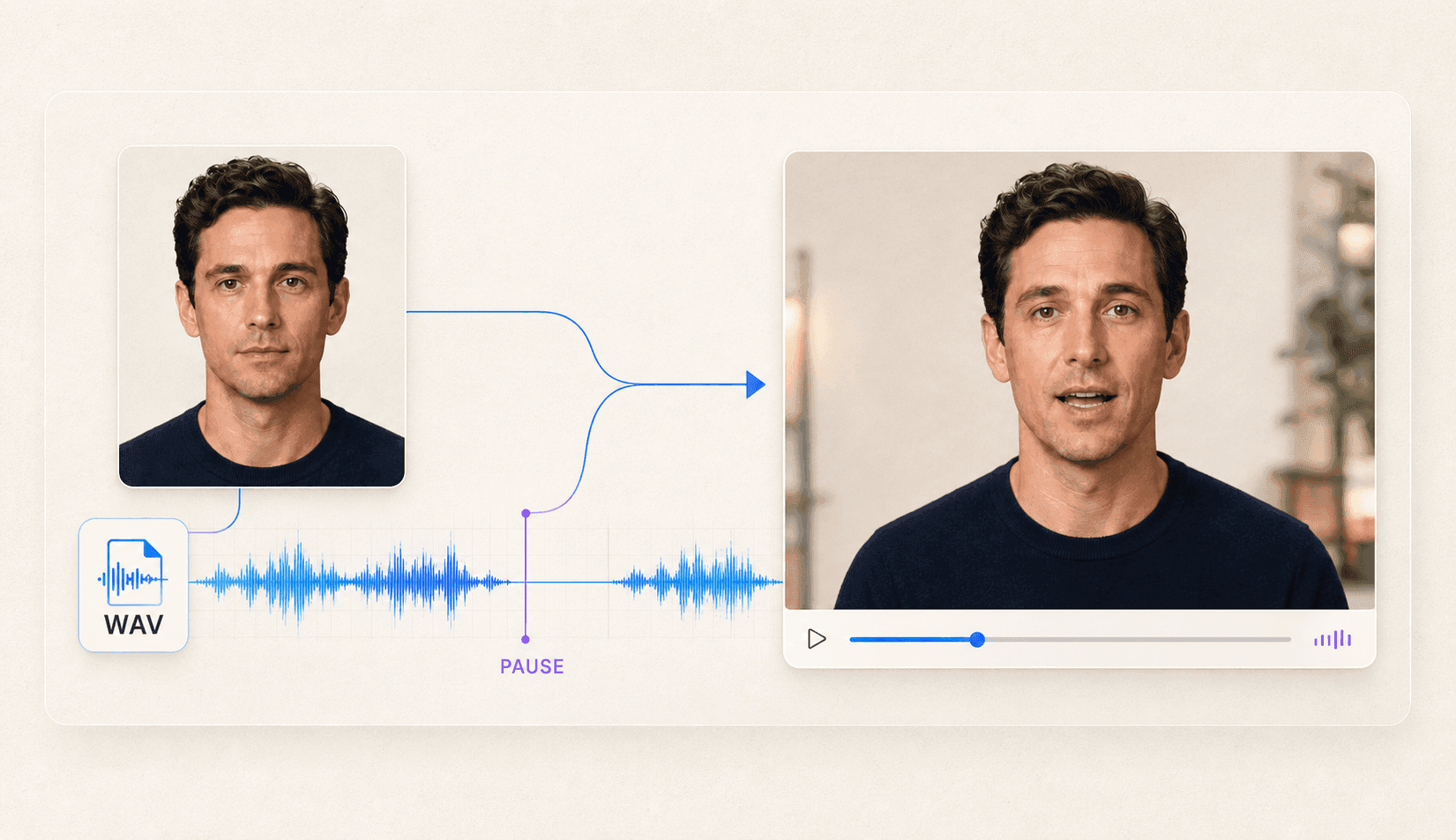
A WAV file supplies the timing, pauses, pace, and performance. The portrait supplies the face. Generate five or ten seconds first. Watch the first word, one pause, and the final mouth closure before you build the full clip.
What the WAV Controls and What It Does Not
The WAV file controls the performance timing, but it cannot supply visual identity or guarantee natural motion. Keep those responsibilities separate when you troubleshoot.
The audio can influence:
- When speech begins and ends
- The timing of words and pauses
- Speaking pace and rhythm
- Emphasis, emotion, and vocal energy
- The total length of an audio-driven clip
The audio does not define:
- The person or character’s identity
- Face angle, lighting, or image detail
- The background and crop
- How much the head or body moves
- Whether a stylized mouth can form every sound cleanly
A portrait-based talking face needs newly generated facial motion. Video-based lip sync inherits the existing performance and mainly changes how the mouth follows replacement audio.
This division also separates portrait animation from video-first lip sync. In a portrait workflow, the image supplies the subject and the audio supplies the delivery. In video-first lip sync, the source clip already contains the performance.
Preflight the WAV Before You Upload It
A file can be technically valid and still be a poor speech input. Listen to the complete recording and correct obvious problems before generating any video.
Use this WAV preflight:
- Confirm compatibility. Check the tool’s current file types, size limit, and duration. Do not assume that every WAV encoding is accepted.
- Listen from start to finish. A file that opens is not necessarily complete or free of errors.
- Check speech clarity. Every required word should be understandable without subtitles.
- Listen for clipping. Harsh, flattened peaks or crackling can hide consonants and make the voice tiring to hear.
- Reduce competing sound. Remove music, room noise, echo, hum, or traffic when they mask speech.
- Trim accidental silence. Remove empty space before and after the recording, but keep intentional pauses.
- Check pacing. Extremely fast speech gives the generated mouth less time to form clear shapes.
- Confirm the content. Correct names, numbers, pronunciation, and final wording before animation.
- Verify permission. Use a voice and recording you are allowed to animate and publish.
For DomoAI specifically, Talking Avatar supports MP3, WAV, and M4A uploads up to 80MB; clear speech without background music is the strongest starting point.
Do not prescribe a sample rate or bit depth without checking the selected tool. WAV is a container label, and supported encodings can differ. Clean, intelligible speech in an accepted file matters more than a universal technical setting.
Add One Intentional Pause as a Sync Test
Place a short natural pause near the middle of the test recording. For example: “Your first scene is ready. [pause] Let’s check the timing together.”
The pause creates an observable checkpoint: the mouth should stop or settle with the voice. Continued movement may come from residual noise, music, breath sounds, room tone, or the generation itself.
Keep the test short. A five- or ten-second file is enough to inspect the first word, one pause, and the final mouth closure.
Choose a Face That Can Follow the Audio
The portrait must give the generator enough facial information to create stable motion. A clean WAV cannot repair a hidden mouth, severe side angle, or blurred face.
Start with an image that has:
- One clear subject
- A front-facing or nearly front-facing head
- A visible mouth in a neutral position
- Even lighting across the lower face
- Sharp eyes, lips, and jawline
- Enough space around the head for small movements
Avoid hands, microphones, hair, shadows, or accessories that cover the mouth. A very tight crop can also create visible edge problems when the head moves.
Illustrations, anime characters, pets, paintings, and historical portraits may need more testing. Their facial proportions or textures can differ from a normal photograph. Choose an input with clear eye and mouth shapes, then generate a short sample before using a long WAV.
Identity drift with accurate timing points to the portrait or motion direction. Fix the source with the Multi-Model Image Generator & Editor, or reduce the movement. A stable face with a late mouth start points to the WAV or synchronization.
Generate the First Audio-Driven Clip
The first generation should test the inputs, not attempt the final production. Keep the setup simple and controlled so each visible result has a clear cause.
Follow this sequence:
- Upload the approved portrait.
- Select Talking Avatar and use DomoAI TTS, record a voice directly, or upload MP3, WAV, or M4A audio.
- Add the preflighted WAV file.
- Choose a short supported duration for the test.
- Add one restrained performance direction if the tool allows it.
- Preview the image and audio before submitting.
- Generate the clip and save it with the settings used.
A useful direction might be:
Speak naturally with small head movements, occasional blinking, and a neutral expression during the pause.
Avoid stacking conflicting directions. Large gestures, rapid head turns, or extreme expressions make it harder to judge whether the WAV lip sync itself is working.
Name each version clearly, such as portraitA_wav-clean_motion-low_v01. If you revise the audio, use a new version name. A settings log prevents you from comparing two clips that changed several inputs at once.
After one version passes timing, identity, and framing review, use Video Upscaler only on that keeper output.
Review the Result Against the Waveform
Synchronization becomes easier to judge when you compare the video with named moments in the audio. Random replay often produces vague impressions instead of actionable fixes.
Mark these checkpoints:
- First speech onset: Does the mouth begin with the first audible word?
- Fast consonant phrase: Do sharper sounds produce plausible mouth changes?
- Intentional pause: Does the mouth close or settle when speech stops?
- Emphasized word: Does the visual energy remain compatible with the performance?
- Final word: Does the mouth stop after the audio ends?
Watch once with normal sound, once muted, and once at reduced speed. Normal playback shows the audience experience. Muted playback exposes repeated head movement, flicker, and identity drift. Reduced speed helps locate the frame where a visible mismatch begins.
Use a timestamped review sheet:
| Time | Audio Event | Visual Check | Result | Next Test |
|---|---|---|---|---|
| 00:01 | First word | Mouth starts with speech | Pass | None |
| 00:08 | Intentional pause | Mouth keeps moving | Fail | Inspect noise in pause |
| 00:17 | Final word | Mouth closes late | Review | Trim trailing audio and retest |
Judge the full clip at normal speed after any frame-level inspection. A tiny slow-motion mismatch may not affect normal viewing, while repeated pause errors often will.
Isolate Audio Problems From Image Problems
Change the input connected to the visible symptom. Regenerating without a clear working hypothesis can consume time and credits while repeatedly producing the same failure.
| Symptom | Likely Source | Next Test |
|---|---|---|
| Mouth moves during silence | Residual noise, music, breath, or model behavior | Use a cleaner pause and rerun the short sample |
| Mouth starts late | Leading silence or timing mismatch | Trim the beginning and compare onset |
| Fast words look weak | Rushed speech or limited mouth detail | Slow the line slightly or use a clearer portrait |
| Lower face stretches | Side angle, hidden mouth, or strong motion | Use a front-facing source and reduce movement |
| Face changes identity | Low detail, tight crop, or generation variability | Use a sharper source and lock the crop |
| Head remains stiff | Limited motion or overly restrictive direction | Test one small, explicit movement |
| Timing drifts later | Long clip or audio issue | Split the WAV into shorter approved segments |
Change one variable per version. If you clean the audio, replace the portrait, and rewrite the motion prompt at the same time, you cannot identify the cause of improvement.
For a longer script, divide the audio at natural sentence or scene boundaries. Keep the portrait, crop, and motion direction stable across segments. Review the joins after editing because separate clips can differ slightly in face position or expression.
Optional Developer Path for Validated Assets
Automation should begin after the portrait and WAV work in a manual test. A valid file upload does not prove that the visual result meets your quality standard.
For an API workflow, confirm the current authentication and upload method, then use the Talking Avatar API for media references, request fields, duration rules, callback behavior, and error responses. Pass the same validated image and audio used in the manual test. Store the task ID, input version, settings, output, and failure status so repeated jobs remain traceable.
Keep the full API implementation in developer documentation. The creator workflow should focus on preparing and validating the media inputs.
Frequently Asked Questions
Can a WAV File Animate a Still Photo by Itself?
No. A compatible face image is still required: audio supplies timing and performance, while the image supplies visual identity.
Should the WAV Include Background Music?
Usually not. Speech-only audio is easier to analyze and synchronize. Add music during editing after the talking-face clip passes its voice and mouth-timing checks.
Why Does the Mouth Keep Moving During Silence?
The pause may contain noise, music, breath, or room tone. The model may also continue small motion. Inspect the waveform, create a cleaner intentional pause, and compare one short regeneration.
Is WAV Better Than MP3 for Talking Faces?
Not automatically. Use a format the current tool accepts and prioritize clear speech. If both formats are supported, compare the same recording rather than assuming the container determines lip-sync quality.
Test One Pause Before the Full Recording
Use a clear portrait and a clean, authorized recording. Add one intentional pause, mark the timestamps, and change only one variable when something fails. Build the full clip only after that short version holds together.


