

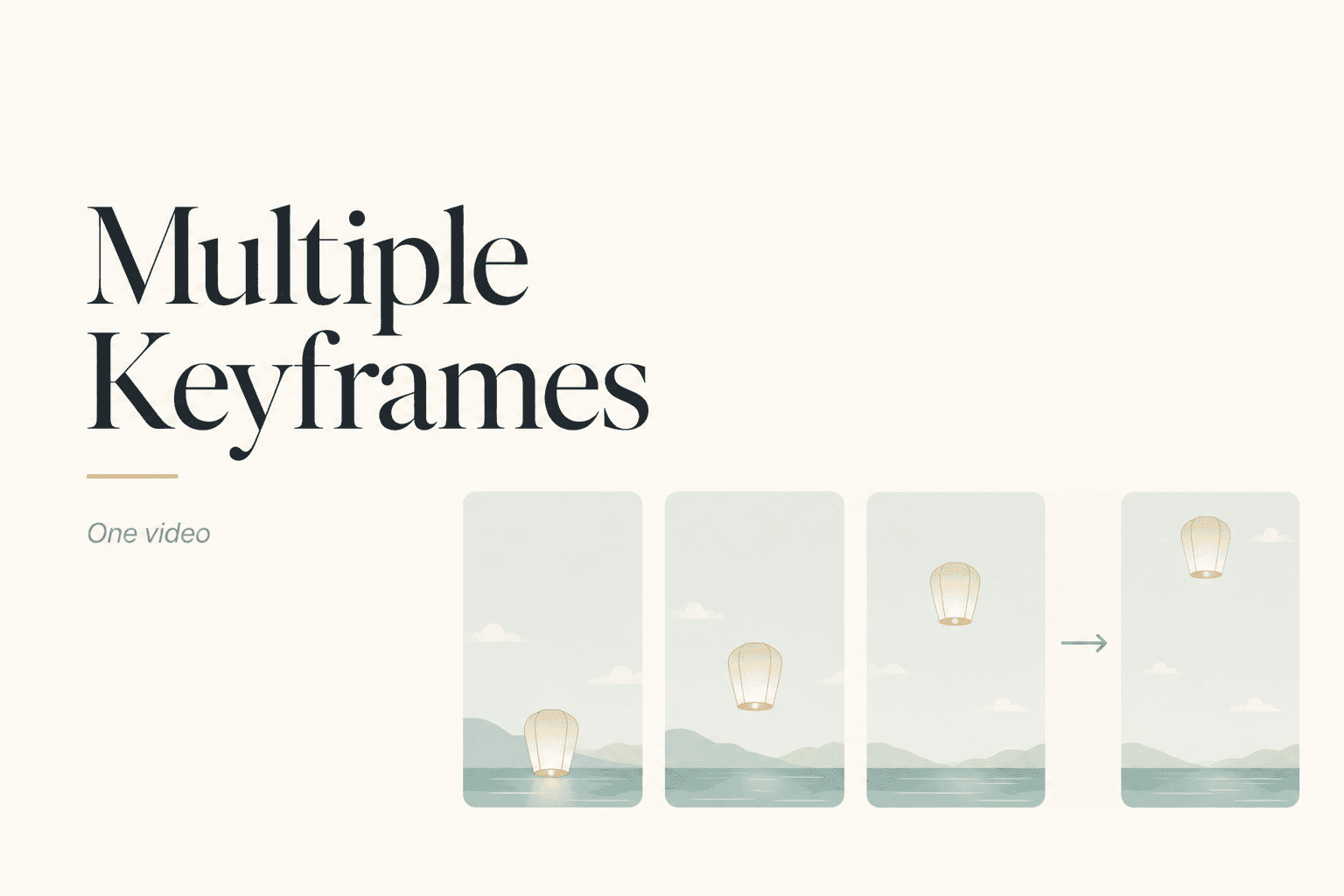
To turn multiple keyframes into one AI video, place the images in story order and describe the motion between each neighboring pair. The frames define the moments the video must reach. The segment prompts explain how the scene physically moves from one moment to the next.
This is motion planning. You already know the visual states. Your job is to direct the gaps.
Frames Define States; Prompts Define Transitions
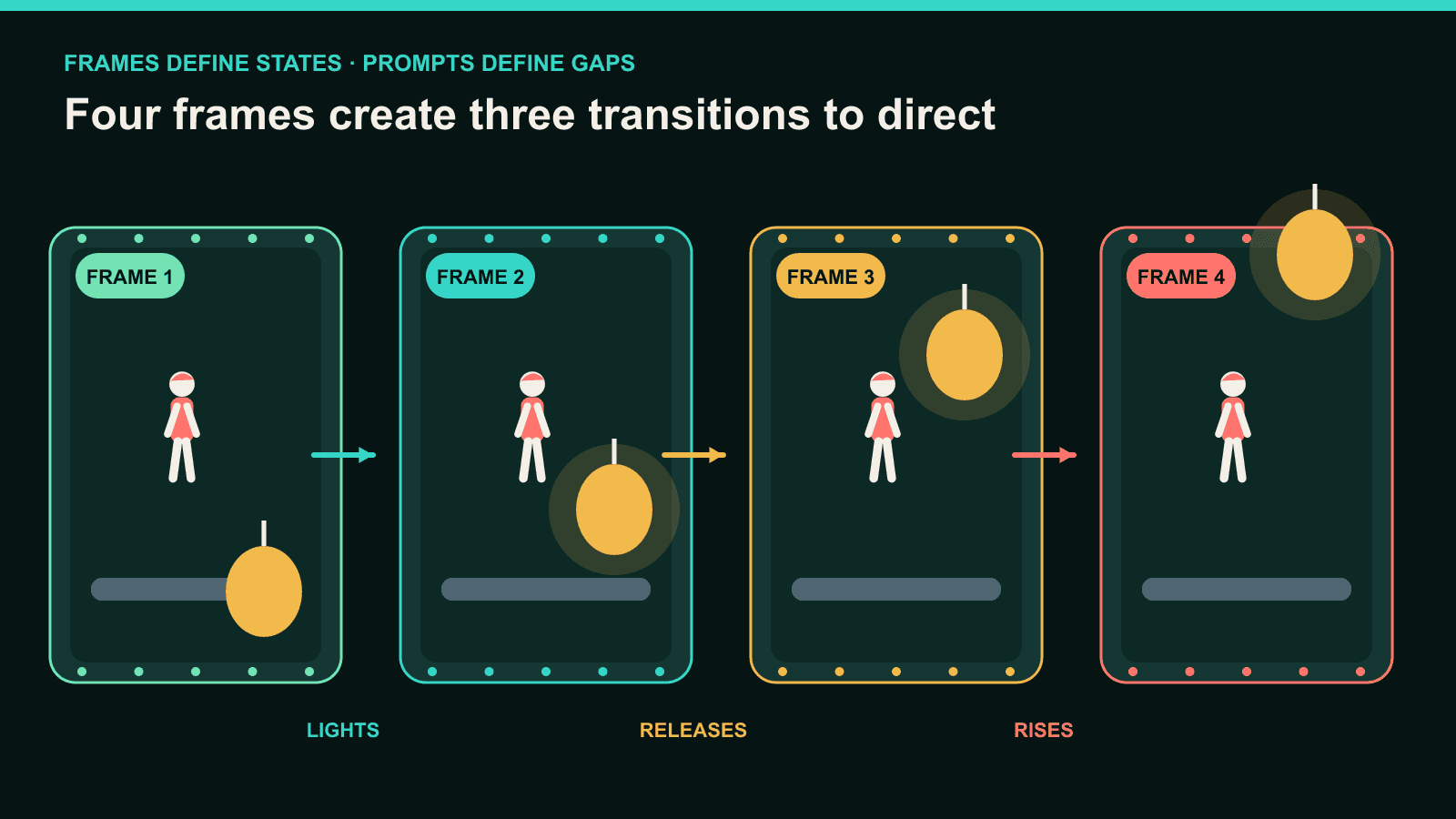
A keyframe shows what the scene looks like at one important moment. It can define a character pose, product state, camera composition, prop position, or lighting change.
The prompt between two frames should not redesign those moments. It should describe the movement that connects them.
Ask one question at every gap:
What must physically happen to reach the next image?
If frame one shows a closed box and frame two shows an open box, the transition prompt should describe the lid lifting. It should not add a camera orbit, flying confetti, and a changing background.
Each gap needs one clear job. That is the main difference between multi-keyframe planning and a long prompt applied to one image.
Start With Frames From One Believable Scene
The images do not need to match pixel for pixel. They do need to look like consecutive moments from the same visual world.
Use this four-frame paper-lantern sequence as a planning example:
- A woman holds an unlit lantern near her waist.
- The lantern glows while she holds it near her chest.
- Her hands release the lantern above her head.
- The lantern rises over the lake while she watches.
The character, outfit, dock, lake, camera position, and lantern design should remain recognizable. The action changes from frame to frame.
Check the details the viewer will track:
- Face, hair, body scale, and outfit.
- Prop shape, size, count, and color.
- Camera height, viewing angle, and crop.
- Horizon, light direction, and background layout.
- Intended aspect ratio and motion space.
A round lantern in frame two should not become square in frame three. Otherwise, the model must redesign the prop while animating its release.
If you still need to plan the images, create the storyboard frames first. This article begins after those frames exist.
Choose the Mode That Matches Your Number of Frames
Use Frames to Video with DomoAI 2.4.1 for a sequence containing two to eight keyframe images. This mode supports per-segment motion prompts and a 1–56 second multi-frame generation.
DomoAI also integrates ByteDance's Seedance 2.0 and Seedance 2.0 Fast. In Frames to Video, those modes accept a start frame and an end frame only.
Choose by input structure, not by which model name sounds newer:
| What you have | Use | What you control |
|---|---|---|
| One image | Image to Video | Starting look and prompt-guided motion |
| Start and end images | Seedance 2.0 Frames to Video | Beginning and ending composition |
| Two to eight planned images | DomoAI 2.4.1 Frames to Video | Several ordered moments and each gap between them |
Use Image to Video when the starting image matters but the destination can remain open.
Use Seedance for a known two-point transition. Use DomoAI 2.4.1 when the video must visit intermediate states.
Order the Keyframes Before Writing Prompts
Add the images from the first story moment to the last. Check the sequence visually before writing motion instructions.
The lantern order should read:
unlit → glowing → released → rising
If the high lantern appears before the release frame, a prompt cannot repair the story order. It will fight the images instead of connecting them.
Place the frames side by side and label each gap. With four frames, you have three transitions:
- Gap 1: the lantern lights.
- Gap 2: the character raises and releases it.
- Gap 3: the lantern rises while the character lowers her hands.
Write only after those sentences feel physically possible.
If one gap contains too much change, add another frame. A new keyframe can turn one impossible jump into two readable transitions.
Do not add frames just to increase control. Every image creates another transition that must remain coherent.
Write One Motion Prompt for Each Gap
Each prompt should describe the change between its surrounding images. Repeat the character and scene details that must stay locked.
The prompts below use the same subject clause throughout. Replace it with your own character and setting, then keep your wording unchanged.
Frame 1 → Frame 2: Light the lantern
4-second 16:9 segment. Same young woman with a short black bob, mustard raincoat,
dark jeans, and white sneakers, standing on the same wooden dock beside the same
lake at blue hour. Locked medium-wide camera at chest height. She holds one round
paper lantern near her waist and lights it. A warm amber glow grows inside the
lantern while both hands remain around its base. The lake stays calm and the dock
stays fixed. Cool blue evening light with amber light from the lantern. No extra
lantern, no camera shake, no character drift, no hand deformation, no text, no watermark.
This prompt moves from unlit to glowing. It does not mention raising or releasing the lantern.
Frame 2 → Frame 3: Raise and release
4-second 16:9 segment. Same young woman with a short black bob, mustard raincoat,
dark jeans, and white sneakers, standing on the same wooden dock beside the same
lake at blue hour. Locked medium-wide camera at chest height. She raises the single
round glowing paper lantern from her chest to above her head, opens both hands, and
releases it gently. Her elbows extend in one continuous motion. The lantern stays
upright and keeps the same round shape. Cool blue evening light with amber light on
her face and sleeves. No extra lantern, no camera shake, no character drift, no hand
deformation, no text, no watermark.
This is the busiest gap. The hands, arms, and lantern all change position, so the camera remains locked.
Frame 3 → Frame 4: Let the lantern rise
4-second 16:9 segment. Same young woman with a short black bob, mustard raincoat,
dark jeans, and white sneakers, standing on the same wooden dock beside the same
lake at blue hour. Locked medium-wide camera at chest height. The single round glowing
paper lantern rises slowly above the lake. She lowers both hands to chest height and
tilts her head up to watch it. A faint amber reflection moves across the water. Cool
blue evening light with a steady lantern glow. No extra lantern, no camera shake, no
character drift, no hand deformation, no text, no watermark.
The final prompt completes the event. It does not introduce a new character action after the release.
Set Duration Around the Physical Change
Give each transition enough time for the visible path between its two images. Lighting a lantern requires less body movement than raising it overhead.
DomoAI 2.4.1 supports a 1–56 second total multi-frame generation. The maximum does not mean every sequence should run long.
Start by estimating the movement in each gap. A small lighting change may feel empty if it receives too much time. A full-body lift may feel rushed if it receives too little.
Keep the ratio fixed across all keyframes. Design vertical frames for Shorts and Reels. Design wide frames for horizontal video.
Do not change the crop after building the sequence. A new ratio can remove hands, feet, or props that the transitions need.
When one gap needs much more time than the others, consider splitting the sequence into separate clips. Join them later in an editor with exact timing.
Review the Video Gap by Gap
Watch the complete sequence once before pausing. Confirm that the story still reads in the correct order.
Then review each boundary separately:
- Frame 1 to frame 2.
- Frame 2 to frame 3.
- Frame 3 to frame 4.
Name the exact problem and the exact gap. “The lantern duplicates between frames two and three” gives you a useful next action.
“The whole video failed” does not.
Review three layers:
- Story: Did the planned states appear in the right order?
- Subject: Did the face, outfit, body scale, and pose remain readable?
- Scene: Did the prop count, camera angle, horizon, and light stay coherent?
One attractive frame does not prove the sequence works. The transitions are the product of this workflow.
Fix the Input Closest to the Broken Gap
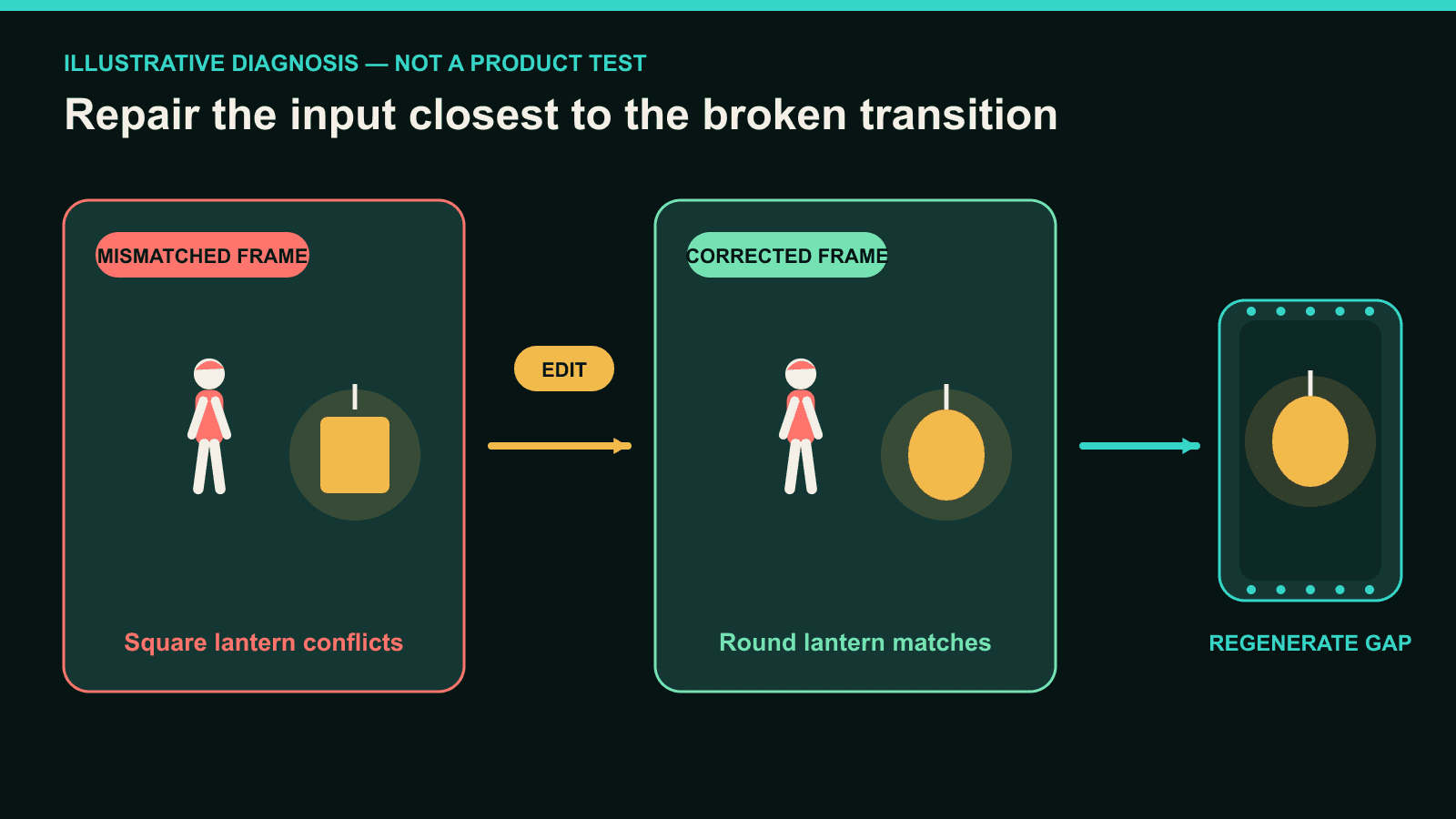
Change the source or prompt that directly controls the weak transition. Avoid rebuilding the entire sequence first.
| What breaks | Inspect first | Change first |
|---|---|---|
| Prop changes shape or duplicates | The two surrounding prop designs | Repair the mismatched frame, then state the prop count and path |
| Character jumps across the scene | Position, scale, crop, and camera angle | Align the surrounding frames before changing the motion prompt |
| Hands fail during contact | Hand visibility in both keyframes | Use clearer hand poses and describe hold, raise, open, release |
| Camera moves unexpectedly | Viewing angle across the two frames | Match the camera geometry and repeat one locked-camera instruction |
| Transition includes an extra action | Segment prompt | Remove movement that belongs to the next gap |
| Lighting flashes between frames | Light direction and exposure | Edit the mismatched keyframe before regenerating |
Use the Multi-Model Image Generator & Editor when one source image contradicts the others. Repair the frame, keep the remaining inputs stable, and rerun the affected sequence.
Do not assume the prompt caused every problem. A prompt cannot keep one lantern consistent when the two surrounding frames show different lantern designs.
Likewise, do not edit a source frame when the images already match and the prompt introduces an unnecessary camera orbit.
What Multiple Keyframes Can Control
Multiple frames can establish the moments the video should reach. They can lock a series of poses, prop states, compositions, or visual beats more clearly than one source image.
They do not define every in-between movement. DomoAI still generates the path, timing, small physical reactions, and visual details between the inputs.
Frames to Video is also not a fully manual animation timeline. Use an external editor for exact cuts, captions, soundtrack placement, and frame-level timing.
Choose the selected generation for its full sequence, not its strongest still. If the motion works but delivery needs more detail, upscale the chosen video afterward.
Upscaling cannot repair a duplicated lantern, missing release, or broken transition.
Questions About Multi-Keyframe Video
How many keyframes can I add in DomoAI?
DomoAI 2.4.1 Frames to Video supports two to eight keyframe images. Each neighboring pair can receive its own motion prompt.
Can I use four unrelated images?
You can add different images, but unrelated subjects, locations, styles, and camera angles may not form one believable scene. Use related frames when continuity matters.
Can I write a different prompt between every frame?
Yes. Describe only the movement needed between that pair. Repeat important subject and scene details, but do not retell the full story in every gap.
Does Seedance 2.0 support four keyframes in Frames to Video?
No. Seedance 2.0 Frames modes available in DomoAI use a start and end frame. Use DomoAI 2.4.1 for two to eight keyframes.
Is Frames to Video the same as Image to Video?
No. Image to Video begins with one image. Frames to Video uses two or more planned images to guide how the scene changes.
Your frames contain the planned states. Put them in order, give every gap one physical job, and repair the first transition that breaks.
Open Frames to Video and build the scene one gap at a time.


