


MiniMax H3 video edits are easier to control when the prompt separates what should change from what must remain fixed. Define the edit, protect identity and motion, then compare the source and output. Start a new generation when the shot concept changes substantially.
What Can MiniMax H3 Video Editing Change?
H3 supports reference-based generation and video editing with multimodal context. It can use a source video plus text, image, video, or audio references to create a revised result. It is not a manual timeline editor.
MiniMax's official materials demonstrate video editing, motion transfer, audio reuse, and voice-reference workflows. H3-Context-IR can interpret the inputs and return an enhanced prompt before generation.
The V2 generation endpoint can produce 768P or 2K directly. MiniMax also documents a separate 2K regeneration endpoint for qualifying 768P results. Regeneration is an optional resolution workflow, not a required step before every 2K output.
The model generates the result. It does not provide frame-level masks, layered tracks, precise cuts, or manual multi-keyframe timeline controls. First- and last-frame inputs belong to separate image-to-video generation modes.
That distinction affects the prompt. “Replace the wall” describes only the change. A useful edit instruction also defines the person, motion, camera, logo, and audio that should remain stable.
Decide What Must Stay Locked
List the protected elements before writing the edit. Review the source clip and decide what gives it continuity.
| Element | Questions To Ask |
|---|---|
| Subject | Must the same face, body, clothing, and hairstyle remain? |
| Motion | Should the gesture, walk, or product movement stay unchanged? |
| Camera | Must the angle, lens feel, crop, and movement remain? |
| Composition | Should object positions and spacing stay fixed? |
| Product | Must shape, material, label, color, and logo remain exact? |
| Background | Which parts can change, and which geometry must stay? |
| Text | Must captions, packaging copy, or signs remain readable? |
| Audio | Should dialogue, rhythm, ambience, and effects remain? |
Prioritize the elements that would make the clip unusable if they changed. A product ad may protect the label first. A character scene may protect the face and outfit.
Do not lock every pixel. The model needs room to perform the requested edit. Protect identity and continuity, then allow the target region to change.
Write A Change, Keep, And Avoid Prompt
Use a structured brief instead of one long descriptive paragraph:
Change:
Keep:
Avoid:
Motion:
Camera:
Audio:
Final look:
This structure makes contradictions easier to find. It also separates the visual edit from production constraints.
Copyable H3 Edit Prompt
Change the background from a plain studio wall to a rainy neon city street at night. Keep the same person, face, clothing, hand motion, camera angle, clip rhythm, and product in their right hand. Avoid changing the logo, adding extra text, or replacing the person's hairstyle. Keep the audio natural and do not add new dialogue.
For a product clip, make the protected details more explicit:
Change only the table surface from white marble to dark walnut. Keep the bottle shape, green glass, gold cap, front label, label text, reflections, camera push-in, and hand position unchanged. Avoid new props, extra labels, color shifts, or camera shake. Preserve the original audio.
The second prompt narrows the edit region. It also names the brand risks that a general instruction might overlook.
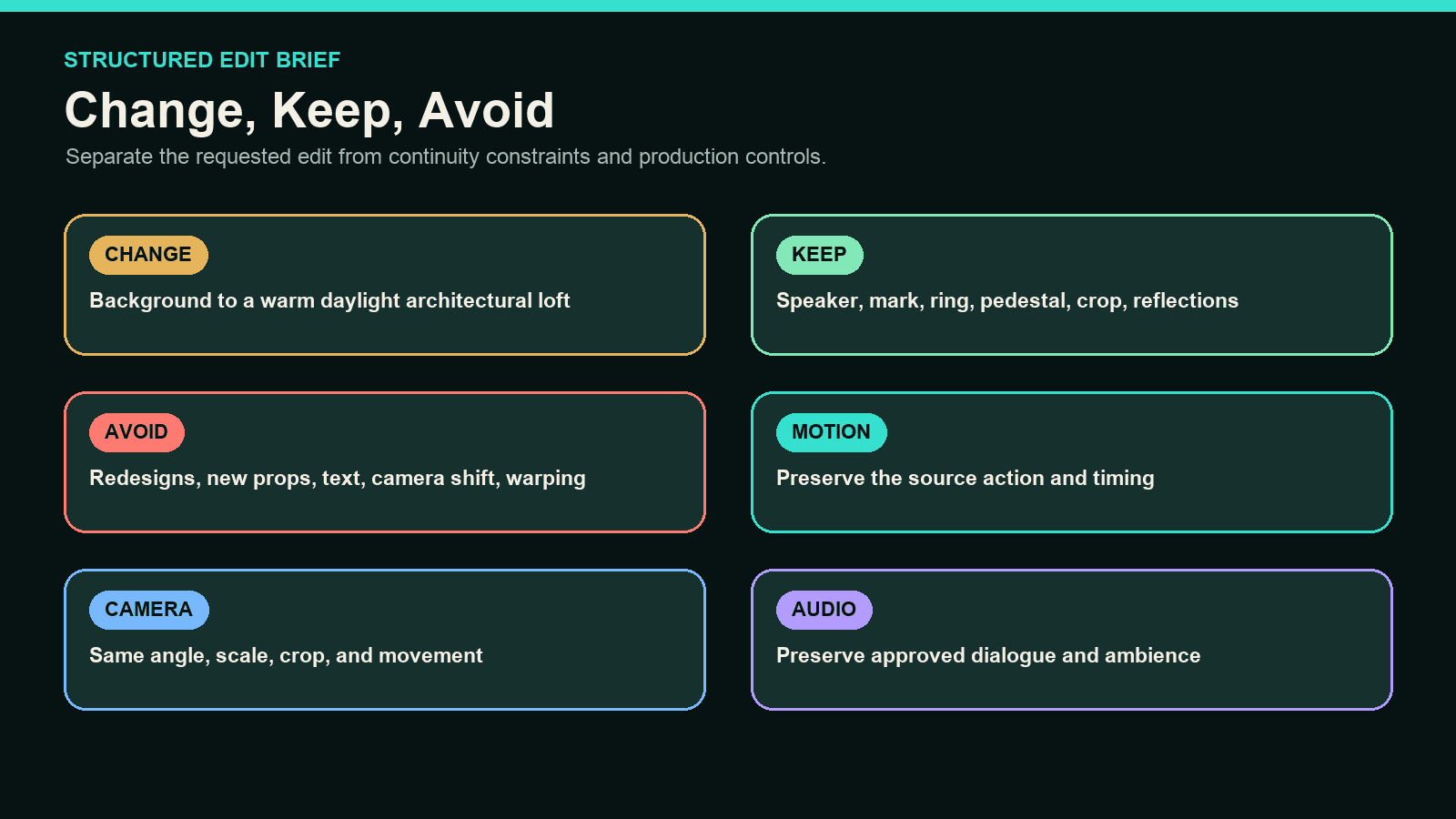
A structured edit brief makes contradictions easier to spot before generation.
Use Reference Media When Text Is Too Vague
A reference can define a location, texture, outfit, or product more clearly than prose. Use it when the target has exact visual details.
Assign a clear role to each reference:
- Target background or location
- Approved character identity
- Product pack shot
- Style or color reference
- Motion or camera example
MiniMax's documentation describes context and reference tasks for H3. Media formats, limits, and controls can differ across the API, product UI, and third-party integrations. Match the references to your route.
References can also conflict. A target background with a different camera angle may force a composition change. A character reference with another outfit may weaken the “keep clothing” instruction.
Edit, Generate Anew, Rebuild, Or Use A Timeline?
The size of the requested change should determine the workflow.
| Choose This Path | Best Fit | Example |
|---|---|---|
| Narrow-scope H3 edit via reference-to-video | One visual attribute changes while the source performance remains useful | Replace the wall while keeping the person and motion |
| New H3 generation | The shot intent or composition changes | Turn a static product clip into a faster reveal |
| Direct H3 generation at 2K | A new output should be generated at 2K from the start | Select 2K in the V2 generation request |
| H3 2K regeneration | An approved, qualifying H3 768P output needs a 2K version | Use the documented task-ID or base-video route when available |
| Frame-based rebuild | The beginning and ending must match planned states | Product transforms from closed to open package |
| Image-to-video rebuild | One approved still should become a new shot | Recreate a damaged clip from its strongest frame |
| External editor | Exact cuts, captions, music, overlays, or color timing | Add a logo end card and synchronize cuts to a track |
Use a narrow-scope edit when the source already contains the right performance and composition. Start a new generation when the action, framing, or scene logic must change. Choose direct 2K generation for a new output; use 2K regeneration only when an approved 768P result qualifies for that separate workflow.
No prompt can replace a timeline when the job requires exact cuts or frame-specific brand overlays.
Reduce Complex Edits Into Separate Passes
One prompt can contain several constraints, but one generation should still have one main creative goal. Split unrelated changes into separate passes.
For example, do not replace the background, change the outfit, alter the camera, and add rain in one request. Start with the background. Approve identity and motion. Then decide whether the atmosphere needs another pass.
Use this order for a high-risk brand clip:
- Protect the subject and product.
- Make the required background or style change.
- Review logo, text, hands, and motion.
- Rebuild the shot if composition failed.
- Add exact captions, overlays, and music externally.
Shorter source segments can also reduce drift. Split only at natural edit points, such as a pause, camera stop, or completed gesture. Avoid cutting through a fast movement that must remain continuous.
Keep an untouched source and every approved intermediate. A later pass may fix one element while damaging another. Version history makes that tradeoff visible.
Review The Source And Output Side By Side
Do not review only the final clip. Place matching frames from the source and output next to each other.
Check the opening, midpoint, and final frame. Then watch both clips at normal speed.
| Review Area | Pass Condition | Failure Signal |
|---|---|---|
| Requested change | Target element changed clearly | Edit is missing or incomplete |
| Identity | Same subject remains recognizable | Face, hair, body, or outfit shifts |
| Motion | Source action stays coherent | Gesture timing or limb path changes |
| Camera | Intended framing remains | Crop, angle, or movement drifts |
| Product | Shape, label, and color remain | Logo changes or package deforms |
| Background | New scene stays stable | Geometry flickers or overlaps subject |
| Text | Required words remain readable | Letters mutate between frames |
| Audio | Sound matches the brief | Dialogue or timing changes unexpectedly |
If the requested change succeeds but a protected element fails, revise the Keep and Avoid clauses. If the whole composition must change, start a new generation.
Use frames taken from the real source video and generated output for this comparison. A still-image edit cannot verify motion, temporal consistency, or audio continuity.
Keep version names readable:
sourceA_city-bg_keep-audio_v01
sourceA_city-bg_lock-logo_v02
sourceA_new-generation-wide-shot_v03
This record prevents teams from comparing unrelated settings.
Build an H3 Editing Workflow with DomoAI
MiniMax H3 is now available in DomoAI through Omni Reference.
You can now generate with MiniMax H3 through Omni Reference, then use DomoAI to prepare source assets or finish the result. Choose the tool that matches the problem left to solve.
Repair A Still Detail
Extract or recreate an approved source frame, then repair it with the Multi-Model Image Generator & Editor. Its GPT Image 2, Nano Banana 2, and Nano Banana Pro options fit fixes to logos, hands, product labels, costumes, and background artifacts.
Rebuild From An Approved Frame
If one still remains usable, rebuild it with Image to Video. When the beginning and ending need defined compositions, use Frames to Video. These are separate DomoAI generation paths, not H3 video-editing modes.
Prepare Product And Ad Variants
An AI UGC ad workflow can connect product visuals, motion, presenter clips, and platform variants. Keep the claim, logo, and pack shot consistent across each version.
Composite The Result
DomoAI Screen Keying can output green-screen or transparent-background footage for CapCut, Premiere Pro, and similar editors. Use external software for masks, layers, captions, and exact brand placement.
Upscale After Creative Approval
Use the Video Upscaler only after identity, motion, and text pass review. It can scale final video up to 4K with noise reduction and detail enhancement.
Upscaling cannot restore an incorrect logo or drifting face. Fix the generation first.
Common H3 Editing Failures And Better Tests
The Protected Subject Changes
Move identity details into the Keep clause. Add an approved face or product reference. Reduce changes to camera and lighting in the same generation.
The New Background Covers The Subject
Describe depth and occlusion. State that the subject remains in the foreground and the new environment stays behind it.
Text Or Logos Mutate
Lock exact placement and wording. If the text still changes, composite the approved graphic in an external editor.
Motion No Longer Matches The Source
State that body movement, gesture timing, and clip rhythm must remain. If the action itself needs revision, start a new generation rather than forcing a targeted edit.
The Edit Looks Right In One Frame Only
Inspect the midpoint and motion transitions. Reduce the target area or split the clip into shorter sections.
Audio Changes Without A Clear Reason
Add an explicit audio instruction and confirm the mode's current behavior. Use external software for exact dialogue, music, and effect mixing.
Frequently Asked Questions
Can MiniMax H3 Edit An Existing Video?
Yes, but through generation rather than timeline editing. MiniMax documents source-video editing with multimodal context; the available inputs and controls depend on the access route.
What Is H3 Video Regeneration?
MiniMax-H3 can generate at 2K directly. Its separate regeneration endpoint can turn a qualifying 768P result into a 2K version. Depending on access, the request can use a source_task_id or reproduce the original generation content with exactly one base_video. The task-ID path requires whitelist access, while the base-video path has additional file requirements.
How Do I Keep The Same Subject During An Edit?
Name the subject's fixed identity, clothing, motion, and position in the Keep clause. Add a clean reference when text alone cannot define the subject.
Can MiniMax H3 Change Audio?
MiniMax's official H3 repository demonstrates a source-video editing workflow that reuses background audio and adds dialogue from a voice reference. Exact audio controls still depend on the route used.
Should I Edit The Clip Or Start A New Generation?
Edit when the source performance and composition should remain. Start a new generation when the action, camera intent, composition, or scene logic changes. Generate at 2K directly for a new high-resolution output; use regeneration only for a qualifying 768P result that already works.
Protect The Parts That Already Work
The best edit prompt does not describe only the desired change. It defines the source elements that make the clip worth keeping.
Archive the source, prompt, settings, and approved output so all later revisions begin from a clearly known production state.
Write the Change, Keep, and Avoid clauses. Then compare three matching frames before approving the result.


