

MiniMax H3 can turn a source image into a short video. The strongest results begin with a clean still, a motion-first prompt, and a clear ending plan. This guide covers source preparation, first and last frames, reference media, review checks, and common failure fixes.
What Does MiniMax H3 Image To Video Do?
Image-to-video generation uses a still image as the visual starting point for motion. The source establishes the subject, composition, palette, lighting, and much of the scene geometry.
The prompt should explain what happens next. It can direct subject action, camera movement, environmental motion, pacing, and the intended ending.
MiniMax's official API lists the model as MiniMax-H3. It supports 768P or 2K output, durations from 4 to 15 seconds, and native stereo audio. The documented workflows include text-to-video, first-frame image-to-video, first-and-last-frame generation, and multimodal Reference Generation.
H3 does not remove the need for planning. Hidden limbs, damaged text, or conflicting depth cues can increase the risk of unstable motion or visual drift.
Start With An Image That Can Survive Motion
A beautiful still is not always a stable motion source. Inspect it as if it were the first frame of a shot.
Source Image Checklist
- Clear subject: the viewer can identify the main person, object, or product immediately.
- Readable edges: hands, face, product outline, and key props do not merge into the background.
- Visible motion space: the frame leaves room for the subject or camera to move.
- Coherent anatomy: limbs and facial features already look correct.
- Stable text and logos: brand marks remain legible and undistorted.
- Consistent lighting: highlights and shadows agree with the scene.
- Useful depth: foreground, subject, and background read as separate layers.
- Correct aspect ratio: the source already fits the intended publishing format.
Fix source problems before spending video generations. The Multi-Model Image Generator & Editor can repair hands, text, outfits, backgrounds, and product details. Its model choices include GPT Image 2, Nano Banana 2, and Nano Banana Pro.
Do not repair everything at once. Change one visible problem, review the result, and preserve the approved subject.
Prompt Motion Instead Of Repeating The Image
The image already tells the model what the scene contains. Use the prompt to define motion and constraints.
A useful structure is:
Subject action + camera movement + environmental motion + timing + locked details + forbidden changes
This product reveal prompt gives each part a job:
Animate this source image into a 6-second cinematic product reveal. Keep the same subject, color, logo placement, and background layout. Start with a slow push-in, add soft reflections on the surface, then finish with a slight camera arc from left to right. No new objects, no text changes, no face or logo distortion.
The prompt does not redescribe every color or object. It protects the important details and directs the shot.
For a character scene, try:
The same character looks toward the window and takes one slow breath. Her hair moves slightly in the evening breeze. The camera makes a gentle push-in. Keep her face, outfit, room layout, and cel-shaded style unchanged. No new characters or sudden camera shake.
Use one main subject action and one camera move for the first test. Add complexity only after the base shot stays stable.
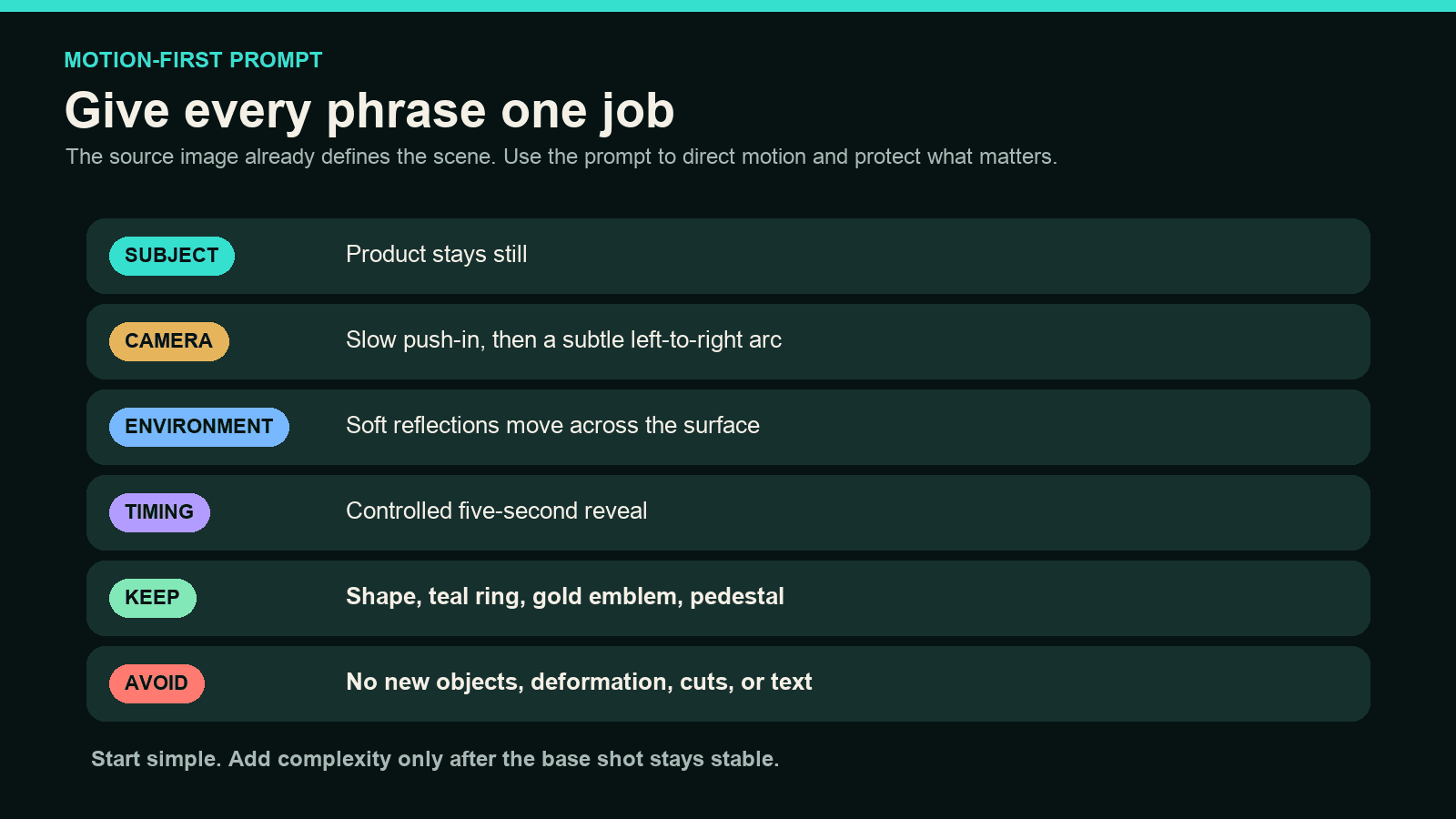
Use each prompt component to direct one part of the shot or protect one detail that must remain stable.
Use First And Last Frames When The Ending Matters
A single starting image leaves the final composition open. Add a last frame when the shot must land on a specific product angle, pose, layout, or transition.
| Shot Need | Starting Image Only | First And Last Frames |
|---|---|---|
| Ambient character motion | Usually sufficient | Optional |
| Slow camera push | Usually sufficient | Use when framing must end precisely |
| Product turn or reveal | Less predictable | Better for a defined final angle |
| Before-and-after change | Weak endpoint control | Defines both states |
| Match cut or transition | Ending may drift | Supports planned edit points |
| Logo or pack-shot finish | Risk of layout change | Helps protect final composition |
The two frames must describe a plausible transition. A front-facing product and an unrelated overhead scene ask the model to invent too much between them.
When planning outside MiniMax, Frames to Video offers two related workflows. ByteDance's Seedance 2.0 modes use a start and end frame, while DomoAI 2.4.1 supports two to eight keyframes with per-segment prompts.
Add Reference Media Only When It Clarifies The Shot
References should resolve ambiguity. They should not become an unfiltered asset folder.
Use Reference Generation for visual references and for optional audio paired with visual media. The current API accepts up to nine reference images, three video clips, and three audio clips, with mixed reference input capped at 12 files. Each video or audio clip must be 2–15 seconds long. Referenced video and audio are each capped at 15 seconds in total. MiniMax's H3 reference documentation indicates that audio should accompany at least one image or video rather than serve as the sole reference input.
H3-Context-IR is a separate asynchronous step that interprets multimodal context and returns an enhanced prompt. It does not create a video.
Assign one purpose to each reference:
- Identity reference for a face or character
- Style reference for rendering language and palette
- Product reference for shape, label, and material
- Motion reference for a specific physical action
- Environment reference for architecture or location
Remove references that disagree with the source frame. Two different jackets, hairstyles, or product labels make “keep the same” harder to interpret.
Check The Output Settings Before Generating
Review the settings before evaluating model quality. A wrong ratio or audio choice can make a good motion test unusable.
Confirm:
- The selected H3 model
- Image-to-video or first-and-last-frame mode
- Clip duration
- Direct 768P or 2K output, plus optional 768P-to-2K regeneration when available
- Aspect ratio
- Audio behavior
- Credit cost, plan access, and availability in your region and interface
The official API currently lets you request 768P or 2K output directly, with 4–15-second durations and common or adaptive aspect ratios. Eligible 768P results can also use a documented 2K regeneration workflow, but regeneration is an optional route rather than the only way to obtain 2K. H3 can generate native stereo audio. Third-party interfaces may expose a smaller control set.
Upscale only after the motion, identity, and composition pass review. DomoAI's Video Upscaler can scale a final clip up to 4K with noise reduction and detail enhancement.
Review The Beginning, Middle, And End
Watch the full clip once, then inspect three frames. The middle often reveals errors that the first and last frames hide.
| Check | Pass Condition | Warning Sign |
|---|---|---|
| Identity | Subject remains recognizable | Face, product shape, or outfit changes |
| Motion | Action develops naturally | Frozen subject or sudden acceleration |
| Camera | Move matches the prompt | Unwanted zoom, shake, or angle change |
| Background | Geometry remains coherent | Walls, signs, or objects melt |
| Text and logos | Details remain readable | Letters change or drift |
| Audio | Sound fits the visible event | Dialogue, effects, or ambience feel unrelated |
| Ending | Final frame supports the edit | Shot stops mid-action or misses composition |
Review at normal speed and frame by frame. A clip can feel smooth while changing a logo for several frames.
Fix Weak Motion, Identity Drift, And Audio Mismatch
The Subject Barely Moves
Replace vague words such as “dynamic” with a visible action. Name the body part, direction, distance, and pace.
Instead of make the scene more dynamic, write the subject takes two steps forward while the camera slowly tracks backward.
The Camera Moves Too Much
Remove competing camera instructions. Choose one move and add a restraint such as stable horizon, no handheld shake.
The Face Or Product Changes
Reduce motion, strengthen the identity constraint, and use a clearer reference. For products, lock logo placement, label text, proportions, and material.
The Background Warps
Ask for local motion rather than changing the entire scene. Keep architecture and layout fixed. Add only wind, reflections, smoke, or another limited effect.
The Audio Does Not Fit
Treat audio as a separate review layer. Confirm the available controls in the current H3 mode. Replace or mix exact music, narration, and brand sound in an external editor when needed.
The Ending Misses The Intended Composition
Use a last frame if the current mode supports it. Make the transition physically plausible and simplify the action between endpoints.
Match The Motion Plan To The Publishing Format
The same source image needs a different motion plan for a product page, social feed, or cinematic sequence.
Product Reveals
Protect the product silhouette, label, material, and logo. Use a slow camera move and limited reflections. End on a readable pack shot rather than mid-motion.
Shorts And Reels
Start the visible action immediately. Keep the subject large enough for a phone screen and compose for 9:16. Leave safe space for captions before generating.
Story Scenes
Use motion to reveal emotion or information. A glance, breath, or small camera move often preserves identity better than a complex full-body action. Plan the next edit before choosing the last frame.
AI UGC Ads
Separate the hook, product proof, presenter, and closing shot. Generate each as a short unit. This makes weak clips easier to replace and keeps brand details under review.
Run one representative shot for the final platform before building a batch. A stable landscape test does not prove that a tighter vertical crop will preserve hands, text, or product edges.
Use H3 for Image to Video in DomoAI
MiniMax H3 is now available in DomoAI through Omni Reference.
Frequently Asked Questions
How Do I Use MiniMax H3 For Image To Video?
Upload or reference a clean source image, choose the current image-to-video task, and write a motion-first prompt. Review identity, motion, camera, background, audio, and ending before generating more clips.
Does MiniMax H3 Support First And Last Frame Video?
MiniMax's current video documentation describes first-and-last-frame workflows, although task names, input rules, and access paths can vary by interface.
What Kind Of Source Image Works Best?
Use a clear subject, readable edges, coherent anatomy, stable text, clean lighting, and enough space for motion. Match the source ratio to the final platform.
Can H3 Keep The Same Character Or Product Consistent?
References and locked prompts can improve continuity, but they do not guarantee it. Test short clips and check faces, clothing, shapes, text, and color across frames.
Can MiniMax H3 Generate Video With Audio?
Yes. MiniMax's official launch page and repository document native stereo audio. The official repository specifies 32 kHz stereo output. Confirm which audio controls appear in the access route you use.
Can I Use MiniMax H3 Inside DomoAI?
Yes. MiniMax H3 is now available in DomoAI through Omni Reference.
Plan The Motion Before You Generate
A stable image-to-video result begins with a source that can move, a prompt that describes motion, and a defined review method.
Prepare one strong still, run one controlled prompt, and inspect the beginning, middle, and end before expanding the scene.


