

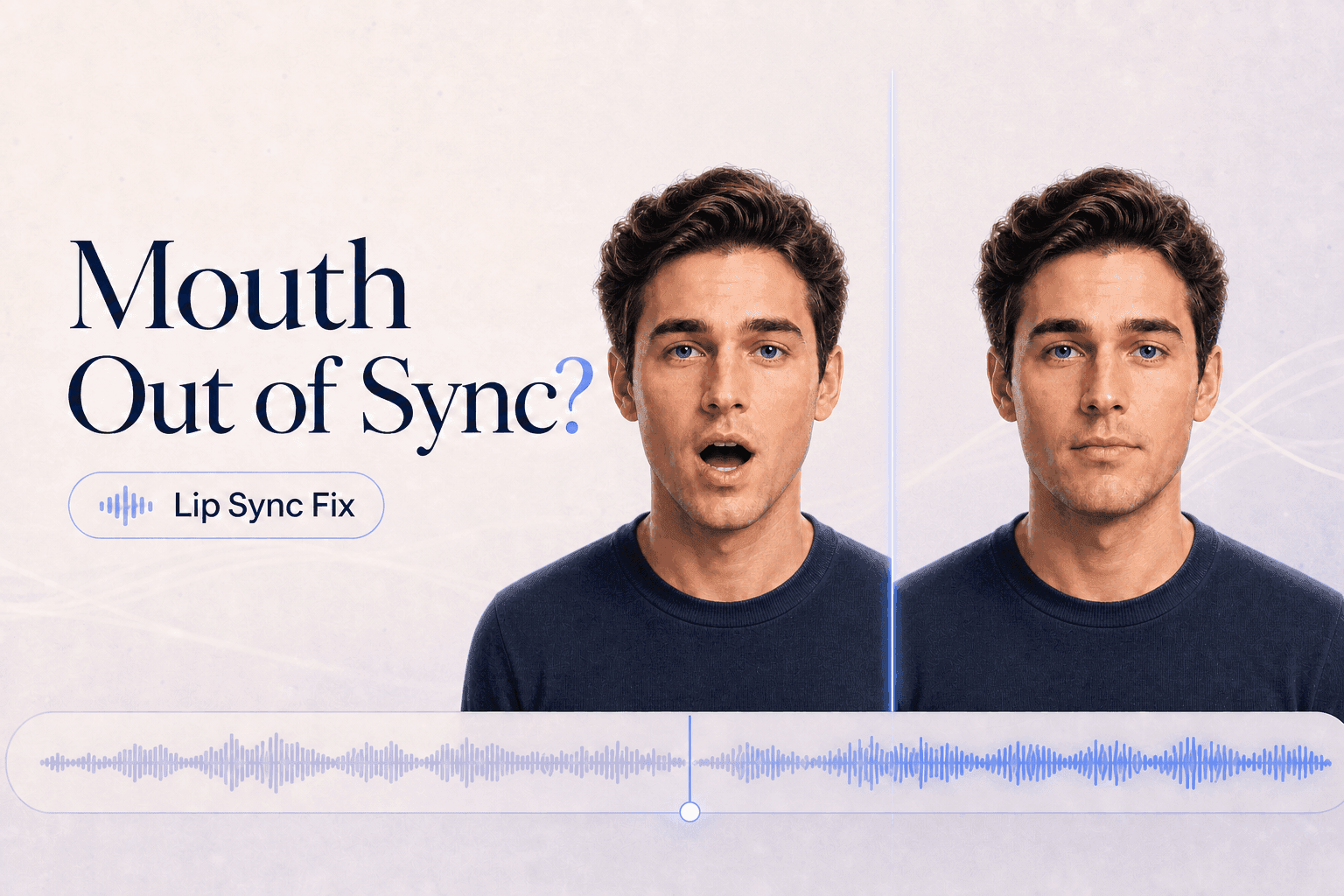
If your avatar mouth is out of sync, name the timing pattern before you edit. A fixed delay, growing drift, and mouth movement during silence point to different causes. Check the raw export, then fix the smallest audio, photo, or timeline input.
Do not start with a full rerender. First decide whether the mouth is always late, gets worse later, moves when no one speaks, or simply looks wrong. Those problems feel similar, but they need different tests.
Name the Timing Pattern Before You Edit
Play the raw avatar export and check three moments:
- The first spoken word
- One quiet pause
- The final spoken word
Then label the problem.
| # | What You See | Timing Pattern | Fix First |
|---|---|---|---|
| 1 | The mouth stays early or late by the same amount | Fixed offset | Check audio start, clipped first word, and edit alignment |
| 2 | The opening looks close, then later words fall behind | Drift | Split long audio and check pacing, joins, or speed edits |
| 3 | The mouth moves during silence or music | False motion | Clean breaths, room tone, echo, noise, or background music |
| 4 | The mouth opens on time but looks stretched | Mouth-shape issue | Improve portrait angle, visible lips, teeth, crop, or prompt |
A timing pattern is better than a feeling. "It feels off" does not tell you what to fix. "The first word starts late, but the ending stays equally late" gives you a useful test.
Check the Raw Export Before the Edit
Always compare the raw export before judging the final edit. If the raw file is in sync but the posted or edited version is not, the avatar generation is not the first problem.
Check for:
- A title card that shifts the video but not the audio
- Detached audio moved by a few frames
- Speed changes on only one track
- A transition placed before the avatar clip
- A social-platform export that changed timing
Duplicate the edit timeline, remove transitions and speed changes, and line up the audio and video start points. If the raw export works, fix the timeline. Do not regenerate the avatar.
For a broader view of where each DomoAI tool fits in the production chain, use the DomoAI Guide before you rebuild the project.
1. Fixed Offset: The Mouth Starts Early or Late
First-word lag often comes from the start of the audio. The audio may have too much empty space before the first word. It may also cut off the first consonant.
Those are opposite problems. Fix them differently.
Fix first: adjust only the audio start or timeline alignment before you touch the portrait or prompt.
If the file has a long lead-in, trim the silence. If the first sound is clipped, restore a tiny clean margin before the word. Do not cut right at the waveform peak.
Use a test line with a clear first sound:
Please check the blue folder before the meeting.
Test only the start point. Keep the same portrait, voice, prompt, and clip length.
Version names:
sync_start-original_v01
sync_start-trimmed_v02
sync_start-restored-margin_v03
If the delay stays exactly the same after two clean start tests, stop trimming. Check the raw export, edit alignment, or tool output instead.
2. Drift: The Delay Gets Worse Later
Drift means the timing looks acceptable at the start, then gets worse later. Do not fix drift by trimming the first frame. That only moves the whole problem.
Fix first: split the line into shorter natural sections and compare the same portrait against the same prompt.
Split the same audio into shorter natural sections and test them against the same portrait.
| Test | Audio | Keep the Same | Review |
|---|---|---|---|
| A | Full 20-second line | Portrait and prompt | First word, middle pause, final word |
| B1 | First 10 seconds | Portrait and prompt | First word and end |
| B2 | Second 10 seconds | Portrait and prompt | New first word and end |
If the shorter parts stay close, your full section may be too long for clean review or edit control. Place joins where the viewer expects a change:
- At a sentence ending
- Under a caption card
- During a screen recording
- Under a product close-up
- Before a new idea starts
If a short raw section still drifts, check that section's audio and speech pace. Rushed phrasing, long breaths, and uneven volume can make the mouth feel late even when the file starts cleanly.
Also check whether you edited the audio after generation. If you stretched, compressed, denoised, or replaced the track, compare it with the exact file that generated the avatar. A clean rerender cannot fix a mismatch that happened later in the timeline.
3. False Motion: The Mouth Moves During Silence or Music
Mouth movement during silence usually means the avatar still hears something. It may be a breath, room tone, music tail, keyboard noise, echo, or a rough edit.
Fix first: generate from speech-only or vocal-only audio, then add music after export.
Use speech-only or vocal-only audio for generation. Add background music after export in a video editor.
For a clean generated voice, create the narration in DomoAI Text to Speech, then send it into the avatar workflow. Use a short test with one real pause:
Open the project. Pause for one beat. Now check the final frame.
Before generating, listen with headphones. Zoom into the pause and check whether the waveform truly goes quiet. Noise reduction can also create artifacts, so compare the processed audio with the original.
For a singing avatar, do not generate from a full mixed song when you need precise mouth timing. Use the vocal track for the avatar. Add the instrumental or full mix after export.
4. Mouth-Shape Issue: The Timing Is Right but the Mouth Still Looks Wrong
Sometimes the mouth opens at the right moment, but the shape looks wrong. That is not a timing issue. It is a visual-readability issue.
Fix first: test the same audio with a clearer front-facing portrait before you rewrite the script.
Check the portrait:
- Is the face turned too far to the side?
- Does hair, a hand, or a microphone cover the mouth?
- Is the mouth already open in the first frame?
- Are teeth or lips blurred?
- Does the crop cut the chin or jaw too tightly?
Run the same audio with a clearer front-facing portrait. Do not rewrite the script during this test.
If the portrait needs a small fix, use the Multi-Model Image Generator & Editor to clean the crop, background, or obstruction. Keep the face identity and mouth shape stable during the test.
Special Case: Test Songs, Translated Lines, and Hard Words Separately
Some sync problems only appear on one phrase. Names, abbreviations, numbers, translated lines, and sung endings can expose timing issues that a plain test sentence misses.
For a difficult name, test the exact line first:
The Q3 SKU migration starts on August twelfth.
Then test a clearer spoken version:
The update starts on August twelfth. It affects archived product variants.
If the exact wording must stay, support it with captions. Do not force the avatar to make a dense line feel simple.
For translated lines, use the final localized audio. Do not judge a Japanese, Spanish, or German clip with an English placeholder. Review pronunciation, caption breaks, first-word timing, and final mouth closure for each language.
For singing, test the real vocal phrase. A spoken substitute does not reveal the same mouth shapes or held endings. Include one clean instrumental gap so you can see whether the mouth settles when the vocal stops.
Run One Same-Portrait Sync Test
Use one short test before rebuilding the full video. The point is to isolate timing, not to make the final scene.
Prepare:
- One clear portrait
- One clean 8-to-12-second audio line
- One visible pause
- One simple action prompt
- One timestamp sheet
Script:
Please pack the blue box. Pause for one beat. Put it by the front door.
Action prompt:
Calm presenter, direct eye contact, relaxed expression, remain still during the pause, one small nod after the final word.
Run the test in Talking Avatar. Change one input at a time.
Version names:
sync_portraitA_audio-original_v01
sync_portraitA_audio-cleanpause_v02
sync_portraitA_audio-slower_v03
Compare v01 with v02 to test the pause. Compare v02 with v03 to test pace. Do not compare two versions where both portrait and audio changed.
If the Same Problem Survives Every Clean Test
Sometimes the same sync problem remains after you test clean audio, a clear portrait, and a short section. At that point, stop making random edits.
Save a small evidence pack:
- Source portrait or avatar video
- Exact audio file used for generation
- Raw export before editing
- Failed timestamp
- Action prompt
- Clip length
- Version names and the one change between versions
This helps you decide the next move. You can try a different source portrait, rebuild only the failed section, or send the files to support with a precise description.
Do not send only the final social export. Social apps can compress, trim, or shift timing. The raw export and the exact source audio matter more.
Use this sentence when you document the issue:
In the raw export, the first word starts on time, but the mouth keeps moving during the quiet pause at 00:06.
A note like that gives a reviewer a real starting point. "The mouth is weird" does not.
Use a Five-Timestamp Review Sheet
Reviewing the whole clip at once makes sync feel subjective. Use timestamps.
AVATAR SYNC REVIEW

File name:
Portrait:
Audio version:
Action prompt:

00:00 first visible mouth movement:
00:__ first spoken word:
00:__ quiet pause:
00:__ difficult word or name:
00:__ final mouth closure:

Pattern:
Likely cause:
One next change:
Fill this out before you rerender. If you cannot name the pattern, run a shorter test.
Use the sheet for both raw and edited files. Label them clearly:
raw_export_syncsheet_v01
edited_timeline_syncsheet_v01
If the raw sheet passes and the edited sheet fails, fix the edit. If both fail in the same place, fix the input or rerun the short generation test.
Frequently Asked Questions
Is WAV Always Better Than MP3?
No. Use a supported format and compare the same recording. Clear speech, complete word starts, clean pauses, and stable volume matter more than the file extension.
Can Lip Sync Strength Fix a Mouth That Starts Late?
Not by itself. Lip Sync Strength can adjust the applied mouth-motion effect, but it does not fix a fixed offset. Check audio start and timeline alignment first.
Should I Regenerate the Whole Clip After One Bad Sentence?
No. Replace the smallest section that contains the problem. Join it at a sentence ending, caption change, screen recording, or planned cutaway.
Can a Side-Angle Photo Cause Sync Problems?
It can make the mouth shape look mistimed. Test the same audio with a clear front-facing source before you decide the audio is wrong.
Can Upscaling Fix Mouth Sync?
No. Upscaling can improve final sharpness, but it cannot move the mouth to the right timestamp. Use the Video Upscaler after you choose the synced take.
Fix the First Failed Timestamp
Open the raw export, mark the first word, one pause, and the final mouth closure. Fix the first failed timestamp with one small change. Then rerun a short test before you rebuild the full clip.


