

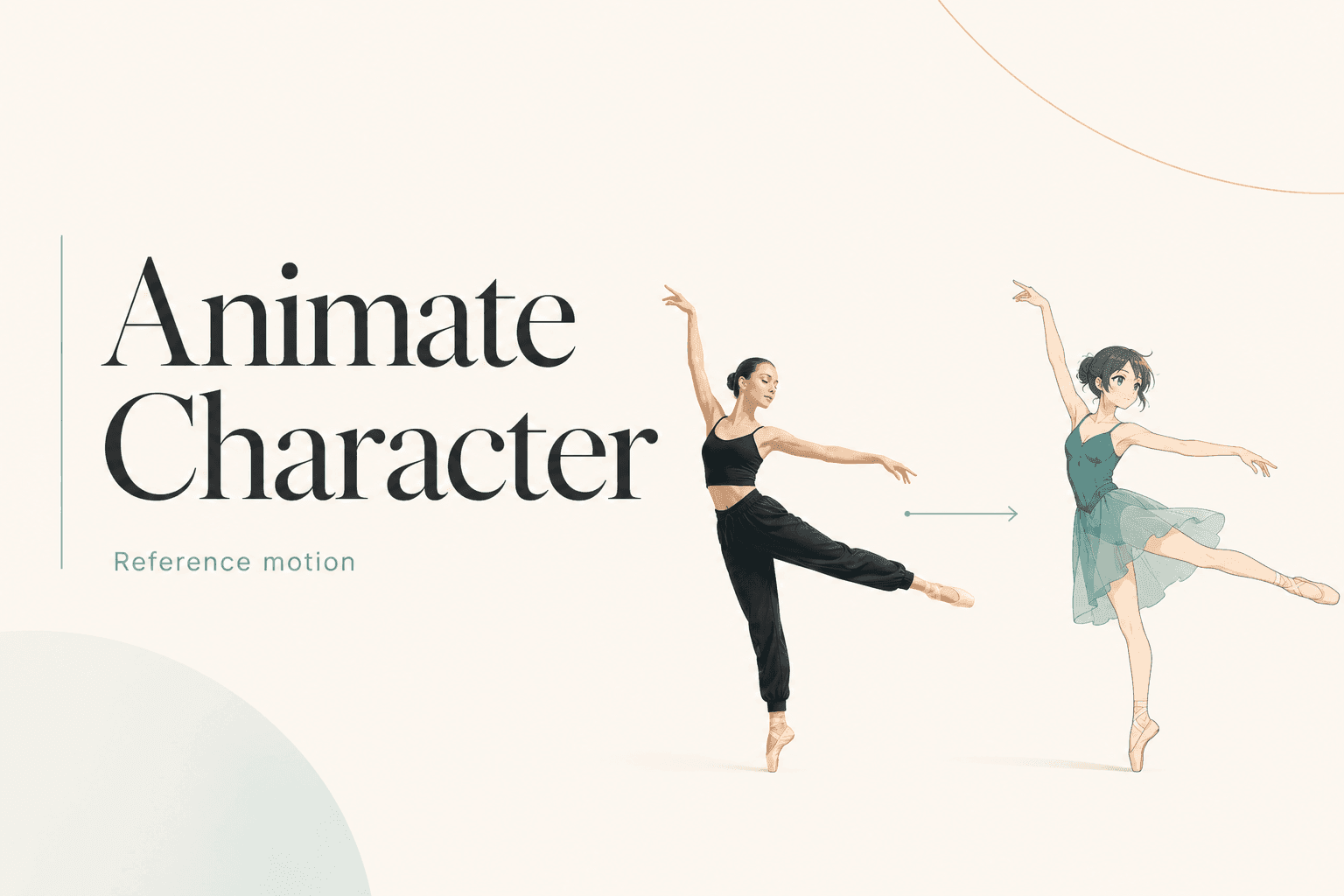
To animate your character from a dance video, upload a character image and an authorized performance to Character to Video. The video supplies the movement. The image supplies the new performer. You can create the clip without building a character rig first.
This is motion transfer, not a visual restyle. Your main question is whether the new character can follow the reference movement clearly.
What the Reference Video Controls
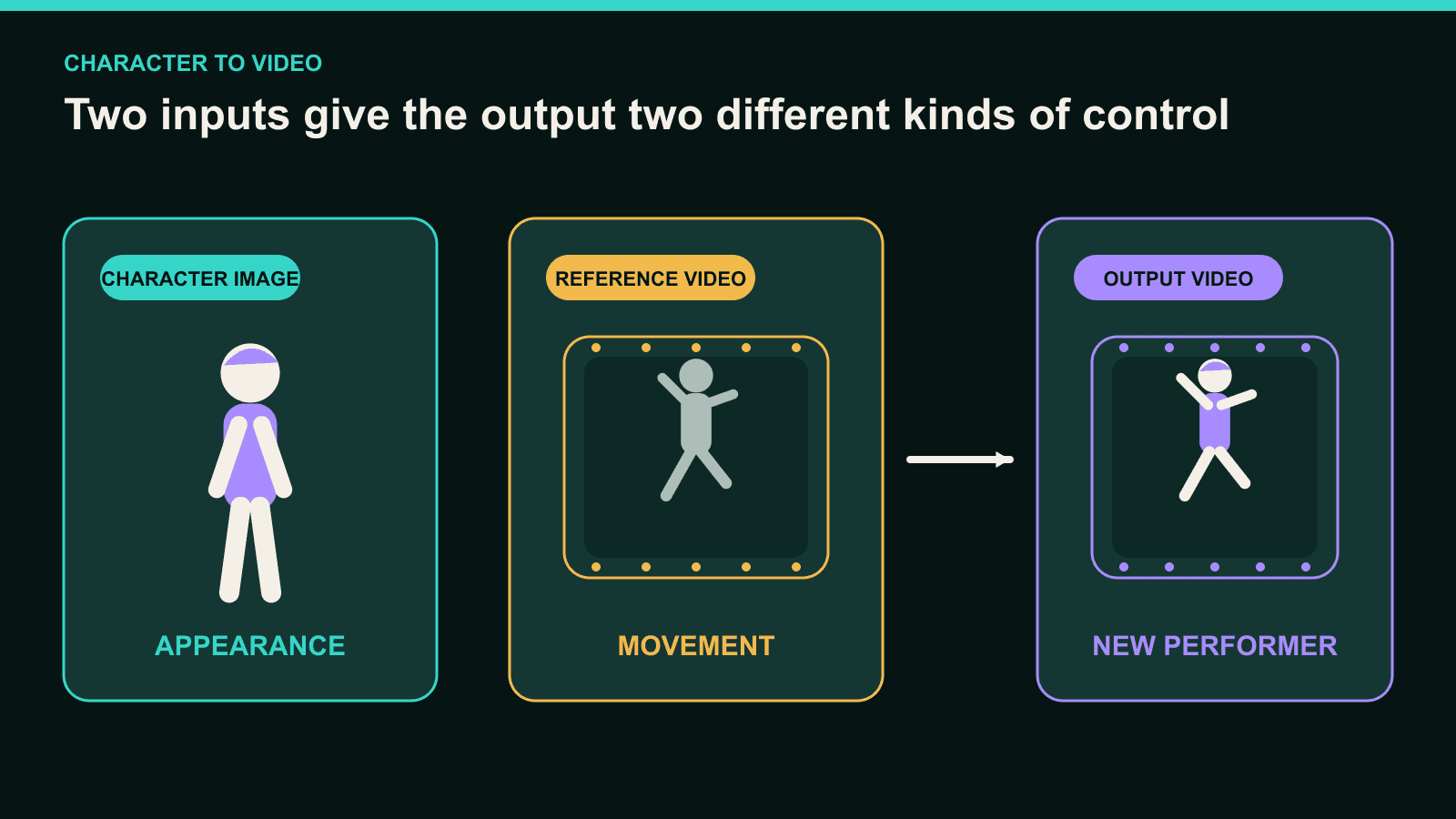
The reference video gives Character to Video the performance to follow. That includes the dancer's body movement, timing, camera framing, and the visible relationship with the scene.
The character image provides appearance. It defines the face, hair, body proportions, outfit, and overall art style.
Keep those two jobs separate when you diagnose a result:
| Input | Its main job | Problems to inspect |
|---|---|---|
| Reference video | Movement, timing, framing, and visible body path | Missing feet, blocked limbs, motion blur, fast cuts, unclear turns |
| Character image | Identity, proportions, outfit, silhouette, and style | Face changes, clothing drift, unclear limbs, incompatible crop |
Changing the character image will not make a hidden foot appear in the reference. Changing the dance clip will not simplify an overly detailed outfit.
Character to Video also differs from Video to Video. Use Video to Video when you want the original performer in a new visual style. Use Character to Video when another character should perform the movement.
Pick a Dance Video That Transfers Well
Use a short clip where one dancer remains visible from head to feet. A fixed camera and one uncut movement phrase make the transfer easier to inspect.
Character to Video accepts MP4, MOV, and AVI reference videos. Start with a six-to-ten-second section, even when the selected model supports a longer generation.
Choose one movement you care about. A side step, arm sweep, half-turn, or final pose gives you a clear review point.
Watch the source without sound. You should still understand the sequence from the body silhouette.
Look for occlusion before uploading:
- Hands crossing the face.
- Arms merging with the torso.
- Legs crossing during a fast turn.
- Hair covering the shoulders.
- Feet leaving the frame.
- Another person passing in front of the dancer.
These actions are not forbidden. They simply hide information that the generated character needs during motion.
Use a dance you recorded, licensed, or received permission to reuse. A public TikTok, Reel, or YouTube clip does not automatically grant reuse rights.
Prepare a Character for Full-Body Motion
Use a character image with a readable face, hands, legs, and feet. Leave space around the body so a hand or shoe does not begin against the frame edge.
A relaxed standing pose makes the silhouette easy to separate. Keep the arms slightly away from the torso and the feet visible.
Simple clothing gives you fewer details to track. Loose straps, layered jewelry, complex prints, and very long hair can all change during movement.
Match the image crop to the dance. A portrait cropped at the thighs cannot provide a clear full-body design for a reference that depends on footwork.
You can use commissioned art, a drawing, a mascot asset, or another image you own. AI-generated art is optional.
If you need a new base, use DomoAI Text to Image. This prompt is designed for a full-body source image, not for the motion step.
Full-body anime dance character base
Original anime dance character, young adult woman with a short black bob, amber eyes,
blue cropped jacket over a plain white shirt, straight black trousers, and white low-top
sneakers. Full-body neutral standing pose, arms slightly separated from the torso, both
hands open and both shoes fully visible. Clean cel-shaded illustration with dark blue ink
outlines. Front three-quarter view, centered with generous space around the body. Soft
studio light from camera left, blue-grey and white palette, plain warm-grey background.
No real celebrity likeness, no text, no logo, no watermark, no cropped limbs, no props.
Save the accepted character image to Assets. Keep it unchanged while you evaluate the first motion transfer.
Match Character Proportions to the Reference
Large proportion differences can make the same movement read differently. A chibi character has shorter legs and a larger head than a realistic dancer.
The tool still uses the reference movement, but the new body must express that movement through another silhouette. A deep side step may look smaller on a short-legged character.
Compare these points before generating:
- Head-to-body scale.
- Arm and leg length.
- Shoulder and hip width.
- Foot size and stance.
- Outfit volume around joints.
You do not need an exact anatomical match. You need to know where the design will alter the visual reading of the dance.
For a first test, choose a character whose body proportions are reasonably close to the performer. Save extreme stylization for a second pass.
Also compare the opening pose. A character facing forward may need to enter a reference that begins in profile. Starting from a closer orientation reduces the change at the first frames.
Generate the Motion Transfer
Open Character to Video and add the authorized performance and character image. Choose the model, duration, ratio, resolution, audio setting, and Subject Only state for the actual project.
The feature offers Seedance 2.0, Seedance 2.0 Fast, and DomoAI 2.4.1. Seedance is ByteDance's model, available through DomoAI's integration.
Seedance modes support 4–15 seconds at 480P, 720P, or 1080P. DomoAI 2.4.1 supports up to 30 seconds per generation.
Start short. A six-to-ten-second reference makes one movement phrase easier to compare than a long routine.
Use Subject Only when the main performer should change while the background stays closer to the source. It does not promise an unchanged background.
Hold the main inputs steady for your first review. Do not change the character, reference, model, crop, and Subject Only setting together.
Watch the complete result at normal speed. Compare the same key movement in the reference and generated version.
Ask one specific question: did the side step, arm sweep, turn, or final pose remain recognizable?
Diagnose Motion-Transfer Problems
The best next input depends on where the problem originates. Use the table to choose what to inspect first.
| What breaks | Check first | Change first when the source confirms the issue |
|---|---|---|
| Hands merge during a fast gesture | Hand visibility and blur in the reference | Use a cleaner reference segment; simplify the character sleeves if the video is clear |
| Feet disappear | Reference crop and character crop | Replace the cropped source that hides the feet |
| Outfit shape changes | Character silhouette and small accessories | Use a cleaner character image with fewer loose details |
| Face changes during a turn | Character face angles and reference blur | Add a clearer character source or use a slower authorized turn |
| Main action becomes smaller or disappears | Visibility of that action in the reference | Replace the reference segment with a clearer version |
| Background changes too much | Subject boundary and Subject Only state | Test Subject Only with the same character and reference |
| Movement looks stiff | Proportion mismatch and motion readability | Try a closer body match or a simpler reference phrase |
This is a priority order, not a guarantee. Generation still varies between runs.
Change one meaningful input, then compare the same moment again. If you change five things, you will not know which choice affected the result.
When to Change the Character Image
Change the character image when the motion is visible in the reference but the design struggles to express it.
Common signals include a cropped body, arms merging with the torso, unclear shoes, or clothing that hides the joints. A face shown from only one extreme angle can also weaken during a turn.
Keep the same character identity. Create a cleaner source pose or a fuller crop rather than redesigning the performer between attempts.
If the character has a fixed brand design, simplify only the animation source. You can preserve the official outfit while separating its layers and making the silhouette clearer.
When to Change the Reference Video
Change the reference when the important movement is hidden, blurred, cut off, or compressed into a fast edit.
A new character image cannot reconstruct footwork that never appears on screen. It also cannot separate crossed limbs that remain unreadable throughout the source.
Record another authorized take with the same choreography and a fixed camera. Slow the performance naturally if speed is the issue. Do not change playback speed only to fit the upload.
Keep one dancer in frame. Avoid cuts inside the movement phrase. Give the performer enough space to finish the final pose.
Once the transfer works, prepare the platform version in your editor. Crop for 9:16 feeds or 16:9 video only after confirming that the crop keeps the required movement visible.
For a trend-led variation, try the AI dance workflow. Use Video Upscaler only after the motion is acceptable.
Upscaling can improve visible detail. It cannot restore a missed turn, hidden feet, or broken hand contact.
Questions Before You Transfer the Dance
Can I animate my character without rigging it?
Yes. Character to Video uses a character image and a reference performance, so this workflow does not require you to build a bone rig first.
Does the character copy the dance exactly?
DomoAI describes the feature as preserving the original movement. In practice, review the whole clip because body proportions and generated details can change how a move reads.
Does the character image need to show the whole body?
Use a full-body image when the reference depends on legs and feet. A close-up source can still fit a close-up gesture, but it cannot define an unseen costume or shoe design.
Can I keep the original background?
Subject Only focuses the change on the main performer and can keep the setting closer to the source. It does not guarantee a pixel-identical background.
Which source should I replace first?
Replace the source that hides or contradicts the broken detail. Change the reference for unclear movement. Change the character image for crop, proportion, or design problems.
The motion comes from the video. The performer comes from the image. Keep those roles clear, and every retry becomes easier to diagnose.
Open Character to Video and test one short movement you are allowed to use.


