
How to Make a Product Explainer Video Without Showing Your Face

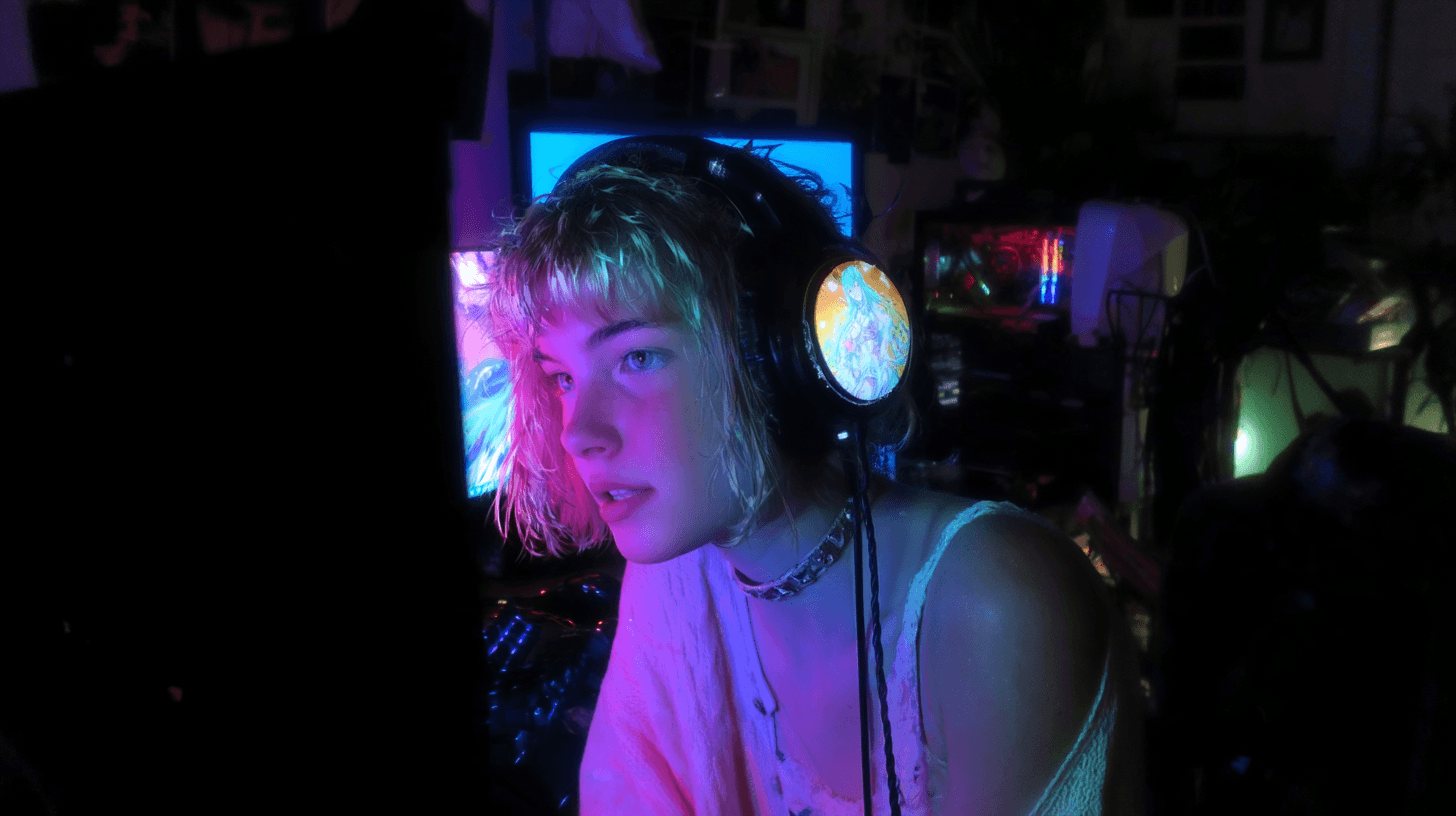
Upload a headshot to DomoAI's Talking Avatar, paste your product script, and generate a lip-synced presenter video. No camera, no studio, no editing timeline. The finished explainer is ready to embed on a landing page in minutes.
Most solo founders and indie marketers hit the same wall at launch time. The product is ready. The script is written. But recording a talking-head video means lights, a quiet room, multiple takes, and an editing session. A talking avatar skips all of that. You provide a still photo and a script. The AI handles the rest.
What Makes a Good Product Explainer Script
The script determines whether anyone watches past the first five seconds. Structure matters more than length.
- Open with the customer's problem. State the pain your audience already feels. One or two sentences.
- Show the solution. Describe what your product does in plain terms. Avoid feature lists. Focus on the outcome.
- Close with one call to action. Tell the viewer what to do next. One action, not three.
Keep the total script under 90 seconds for landing page use. That length holds attention and fits the pacing of a presenter-style video.
How to Create the Explainer Video Step by Step
- Write your product script using the structure above.
- Choose a portrait image. Use your own professional headshot or a royalty-free photo that fits your brand. The photo should be shoulders-up, front-facing, with a plain background and neutral expression.
- Open Talking Avatar and upload the portrait.
- Paste your script into the text field. Select a voice from Sound Generation (Text to Speech) that matches your brand tone. A calm, mid-paced voice works well for product explainers — listeners trust steady delivery over high energy.
- Use the action prompt field to direct the avatar's expression. Something like "speak with calm confidence" or "nod occasionally" keeps the output grounded.
- Generate the video and preview the output. Check that lip movement tracks the voiceover pacing and that head motion looks natural at full speed.
- Export the finished file and embed it on your landing page, pitch deck, or product listing.
Total time: Under 15 minutes from open tab to exported file.
Sample Workflow: 90-Second SaaS Launch Explainer
Setup: You have a project management tool launching tomorrow. Your script is 90 seconds. You have a LinkedIn headshot.
- Open DomoAI → Talking Avatar.
- Upload your LinkedIn headshot (shoulders-up, neutral expression, front-facing, clean background).
- Paste your script into the text field. The script leads with the problem — scattered tasks, spreadsheets, unclear ownership — then presents the product, then closes with a single trial link.
- Under Sound Generation, pick a calm, mid-paced voice. Avoid overly energetic tones for product explainers.
- Generate. Preview. Confirm that the lip movement matches pacing and the portrait animation looks natural at full speed.
- Export at the highest available resolution. Embed directly in your landing page hero section.
The entire sequence — generation, voiceover, and direction — completes inside one tool. No actor, no studio, no post-production queue.
What Affects Output Quality
The source photo has the single largest impact on how realistic the final video looks. A few details make a measurable difference.
Portrait selection
- Use soft, even lighting. Hard shadows across the face create artifacts during animation.
- Choose a plain or simple background. Busy backgrounds distract from the speaker and can introduce visual noise.
- Make sure the subject faces the camera directly. Slight angles are fine; profile shots are not.
- Avoid sunglasses, hats, or anything that covers the mouth or jawline.
- Keep the expression neutral. A slight, natural smile works. Exaggerated expressions reduce the range of motion the AI can animate.
Lip sync and motion
- Good output tracks syllables — not a generic open-close loop.
- Subtle head drift looks natural. Large swings look uncanny.
- If the pacing feels off on preview, adjust your script's sentence length. Shorter sentences give the AI cleaner break points.
Voice selection
- Match the voice to your audience. A SaaS product aimed at operations managers calls for a different tone than a consumer app.
- Test two or three voices before committing. Small differences in pace and pitch change how the message lands.
Recent Talking Avatar Update
DomoAI's Talking Avatar now supports video uploads alongside still photos, prompt-based direction for expressions, and additional aspect ratios including 3:4. For explainer videos, the prompt input lets you control the avatar's energy — a calm, steady delivery for a SaaS tool reads differently than an enthusiastic one for a consumer product. Body movements and facial expressions also render with more range than earlier versions.
Sample Prompts
Faceless host base — Image2
Paste into Image2 to generate the presenter, then send it to Talking Avatar.
Original mascot-style explainer host, friendly rounded 3D character, smooth matte teal body, large simple glossy eyes and a small expressive mouth, no human likeness. One stub hand gestures toward a floating white product UI card on its right. Centered chest-up framing with the head fully in frame for lip sync. Clean modern 3D render, soft even studio lighting, teal and warm-white palette, seamless light-grey gradient background with a soft contact shadow, clear empty space upper-left for a title caption.
Make it talk — Talking Avatar
Upload the base image plus your voiceover (or a Text to Speech script).
Talking Avatar — 10s, 16:9. The same teal mascot host, head fully in frame, lip-syncing to the uploaded voiceover. Locked-down camera, no movement.
0–4s: gentle idle — small natural blinks, subtle head bob on stressed words, one stub hand lifting toward the product card.
4–8s: slight lean toward the card as it highlights, calm confident delivery.
8–10s: settle back to neutral, small nod.
Even studio lighting holds, teal-and-white palette. Keep the face, body, and color consistent throughout — no drift, no warping, no extra fingers, no text or watermark.
Optional faceless B-roll — Image to Video
For cutaways with zero presenter on screen.
Image to Video — 5s, 16:9. Product hero shot of your product on a seamless light-grey surface, soft top light, teal accent rim light.
0–2s: slow 20-degree orbit around the product, smooth and stable.
2–4s: gentle push-in as a thin teal highlight sweeps across the surface.
4–5s: settle, product centered with empty space above for a caption.
Shallow depth of field, clean reflection on the surface. No camera shake, no warping, no text or watermark.
Frequently Asked Questions
Can I use my own headshot for a talking avatar explainer video?
Yes. Upload any portrait photo — your own headshot, a team member's photo, or a royalty-free image, you can make adjustment with the Image Editing tool. DomoAI animates the face with lip-synced speech directly from the still image. For best results, use a high-resolution, front-facing portrait with clear facial features and the mouth closed or in a neutral position.
How long can a talking avatar explainer video be?
Script length determines video duration. Paste your full script and the tool generates the corresponding video. For product explainers, 60–90 seconds holds attention and fits landing page conventions. Pro plan subscribers can access longer durations (up to 60 seconds per generation for Talking Avatar).
Do I need to record my own voice?
No. DomoAI's Sound Generation (Text to Speech) creates the voiceover from your written text. Choose a voice tone, generate, and the audio syncs to the avatar's lip movement. You can also upload your own audio file (MP3, WAV, or M4A) if you prefer a custom recording.
Does a talking avatar video from a photo look robotic?
Output quality depends on the source image. A well-lit, front-facing headshot with a neutral expression produces natural-looking animation. Photos with extreme angles, busy backgrounds, or accessories that cover the face reduce quality. The action prompt field also helps — directing the avatar to nod or shift expression adds realism.
Can I make explainer videos for multiple clients with this workflow?
Yes. Upload a different portrait per client, paste each client's script, and generate separate lip-synced presenter videos. The workflow scales across projects without hiring voice talent or booking camera time.
Is the output free to use commercially?
Yes. You fully own the content you create with DomoAI and can use it for commercial purposes, including landing pages, ads, and pitch decks.
How DomoAI Compares to HeyGen and Synthesia for Explainer Videos
HeyGen and Synthesia both offer talking avatar explainer videos, but they start from a library of pre-built digital avatars. You browse a catalog and pick a spokesperson. DomoAI takes a different approach: you upload any portrait photo — your own headshot, a team member, or a brand-appropriate image — and the tool animates that specific face. Combined with built-in Text to Speech, you get a lip-synced explainer from one tool without avatar selection screens or separate voiceover subscriptions. For solo founders who want the presenter to look like them (or like a specific brand representative), that distinction matters.